Server-Database backup and restore
Usage:
Database backup and restore, which can be used for server migration - backup on the old server and restore on the new server.
Operation instructions:
Step 1: Check the storage path of the backup database (backup)
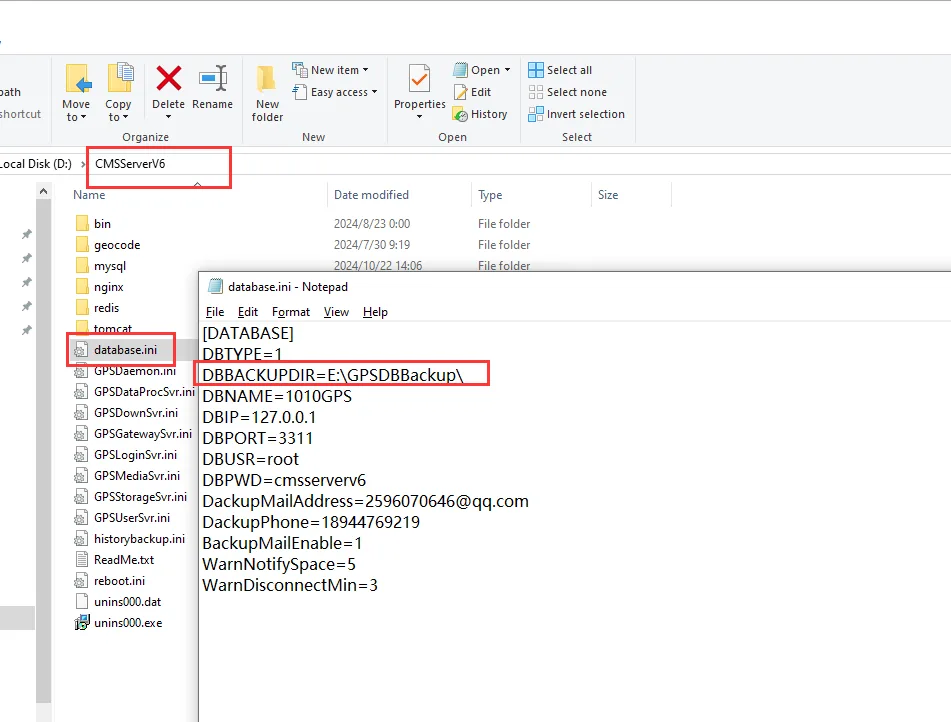
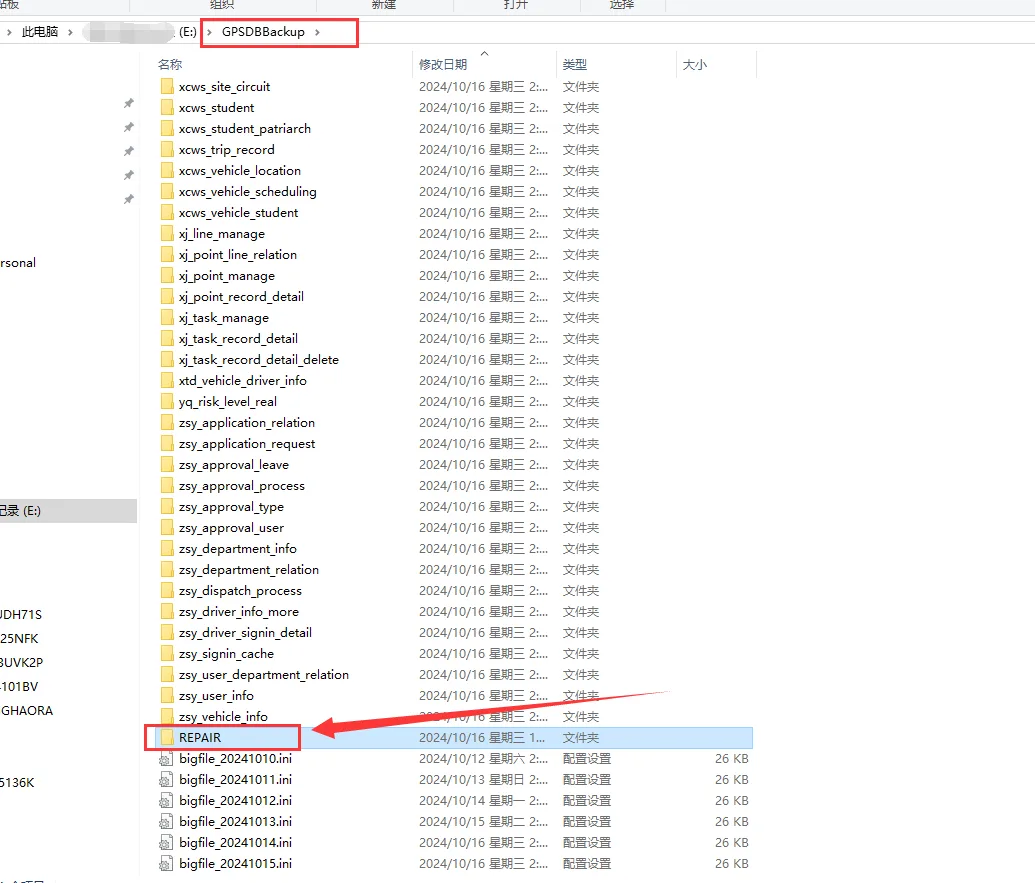
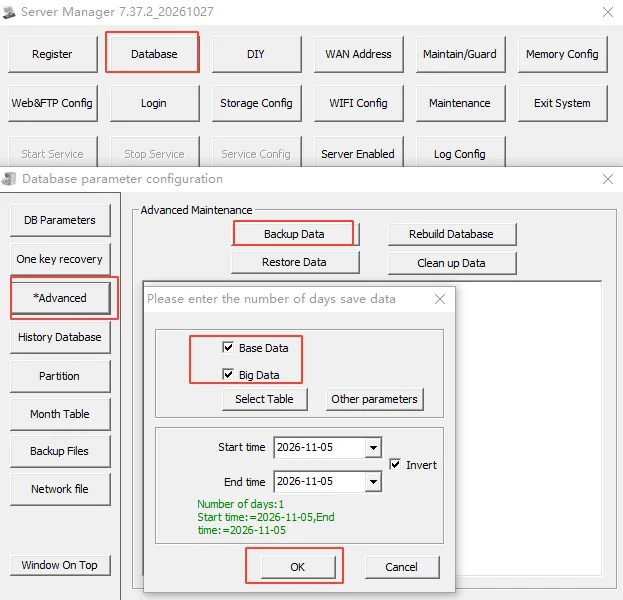
Step 2: Database data backup
There are two ways to back up database data: automatic backup and manual backup.
Data automatically backed up by the server software:
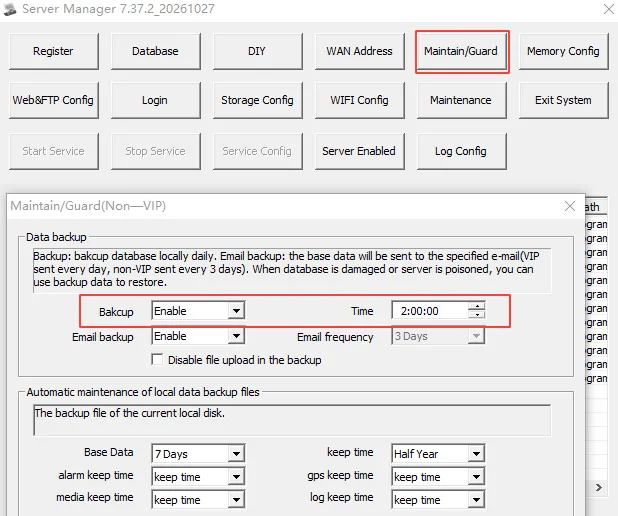
(The server starts this service by default. As long as your server software is not closed, the server software automatically backs up data at the set time every day.)
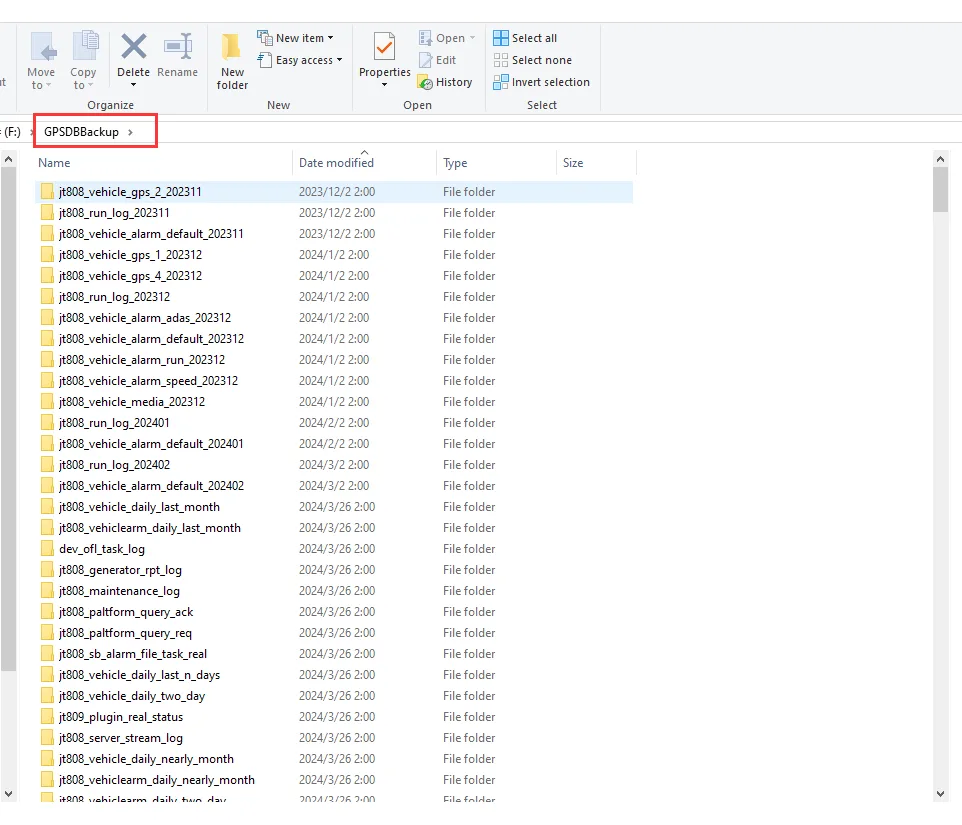
The automatically backed-up data is stored directly in the root directory of the backup folder.
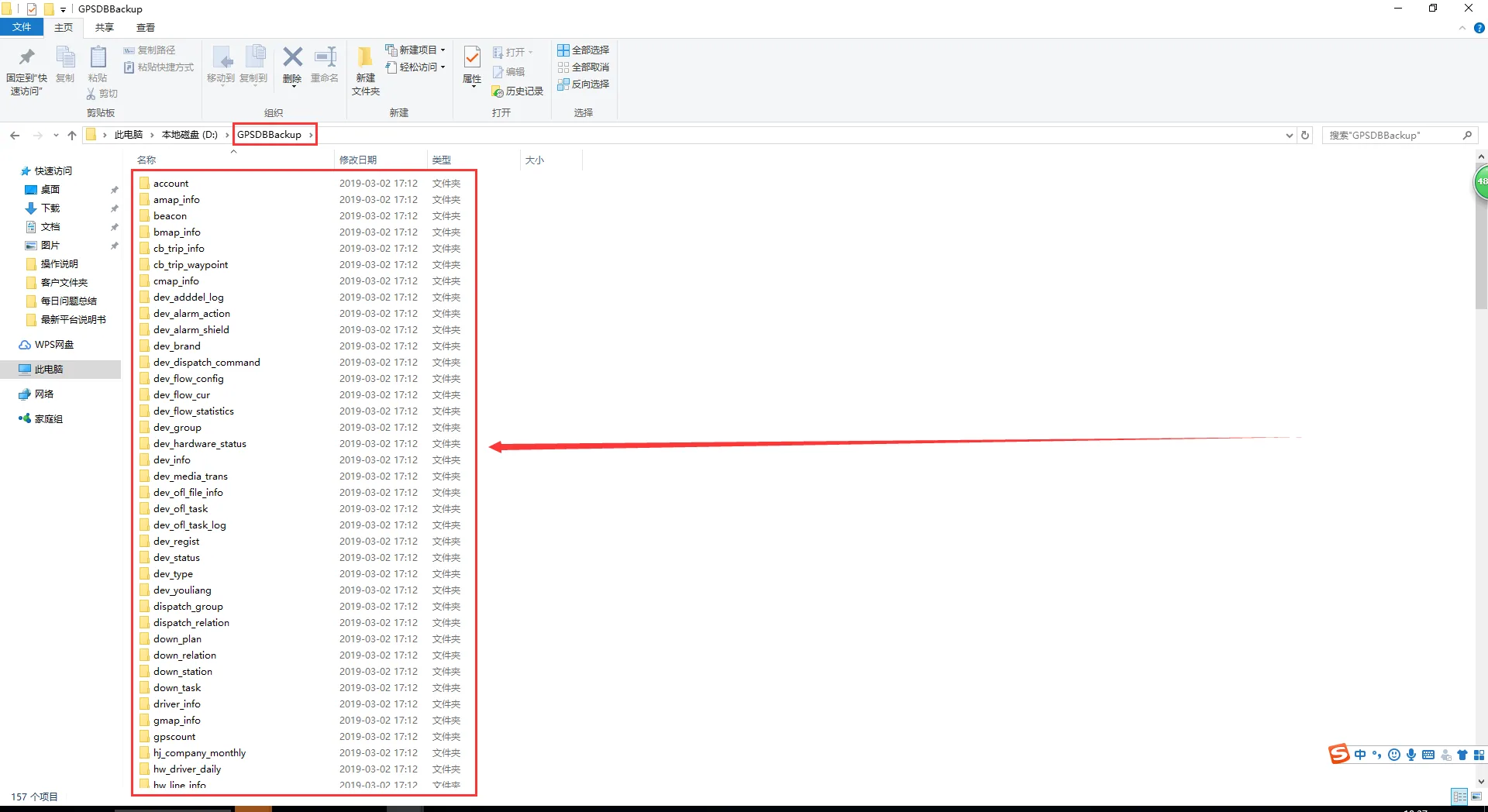
Data manually backed up by the server software: (For a manual backup, it is recommended to back up only the basic data. Backing up the big data takes a long time.)
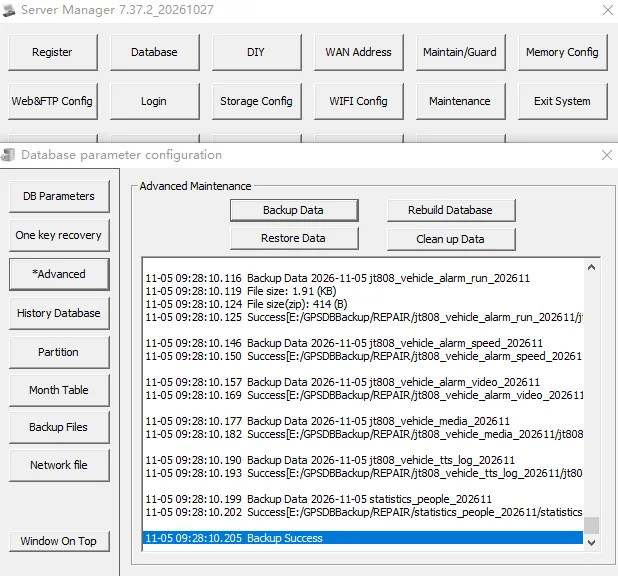
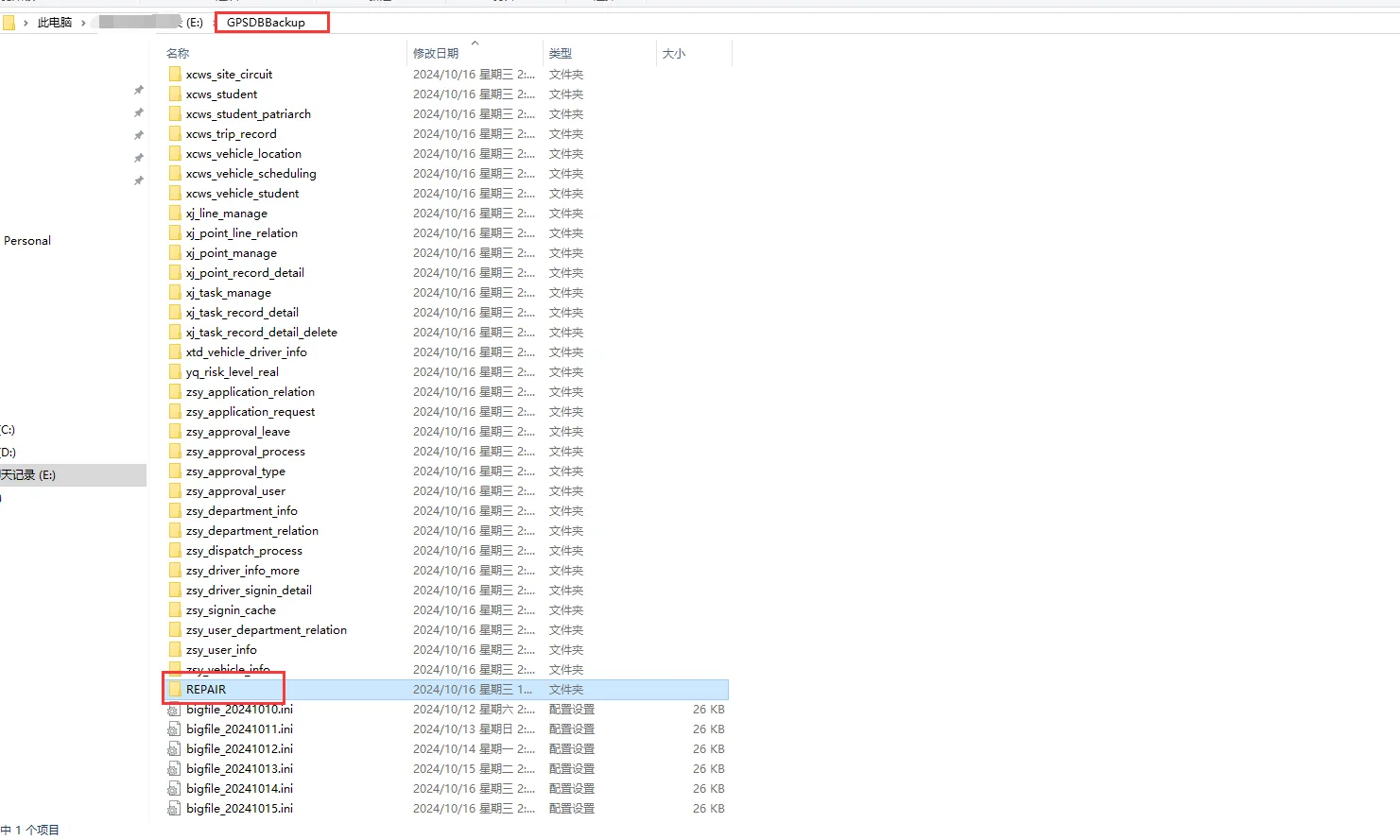
The manually backed-up data generates a repair folder in the root directory of the backup folder. The data in the repair folder is the manually backed-up data.
Step 3: Database data restore
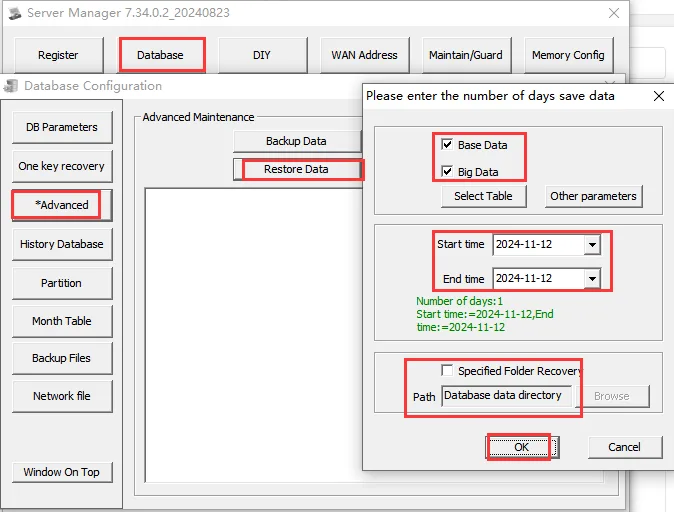
Special note:
When restoring data, the database configuration tool preferentially selects the data in the repair folder for data restoration. That is, it preferentially selects the database data that was backed up manually for data restoration.
Only when there is no repair folder in the backup folder (that is, the server software has not performed a manual backup) will the restore select the automatically backed-up data in the backup folder for data restoration.
Therefore: (When the repair folder for manual backup exists, you can rename the repair folder to prevent the database configuration tool from reading the manually backed-up data for data restoration.)
Supplement:
Email backup function (this backup only backs up the basic data)
Log in to the corresponding mailbox and download the basic data backed up by email for data restoration:
After downloading, put the compressed package of the backup data into the GPSDBBackup folder and decompress it.
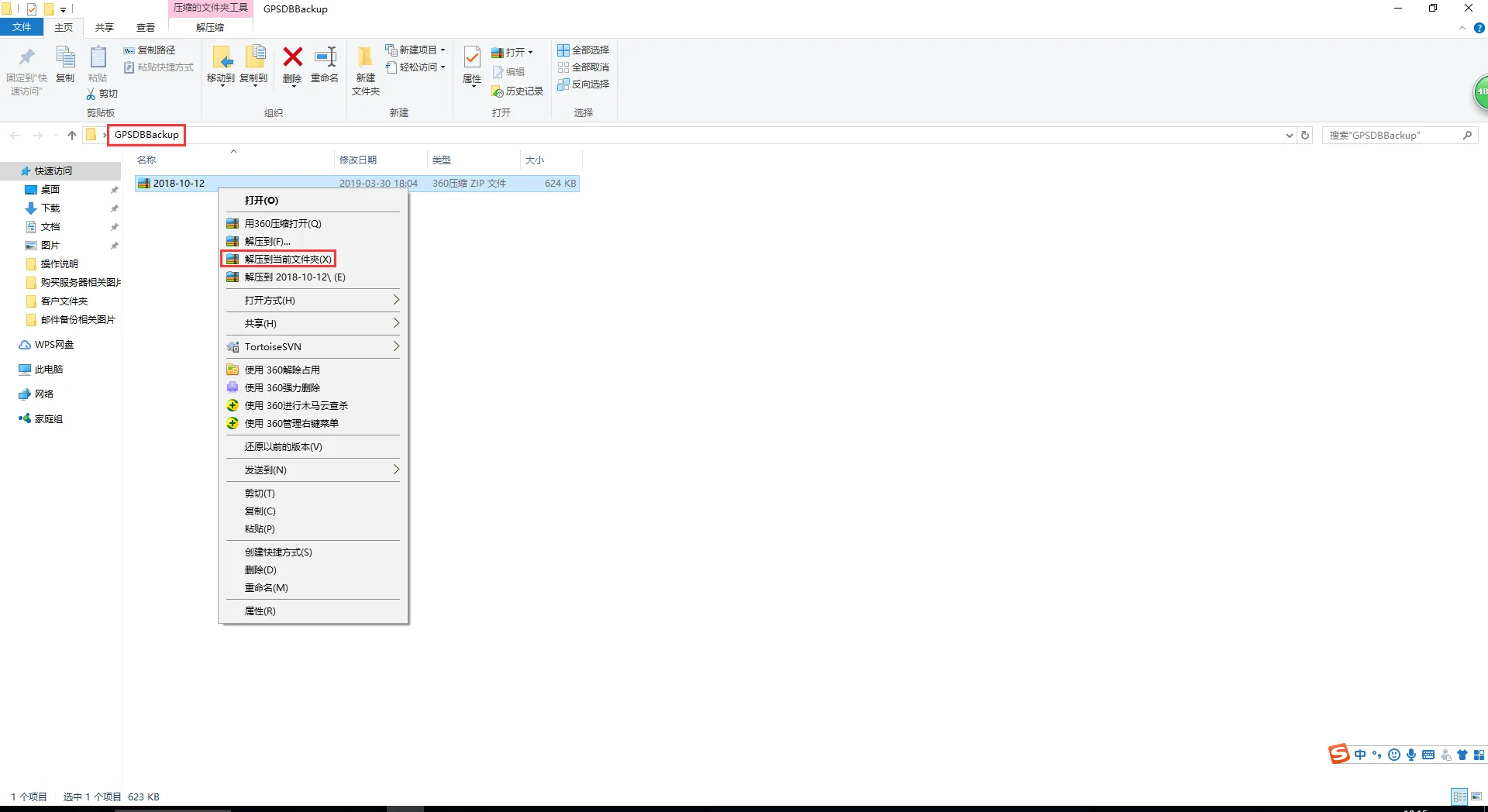
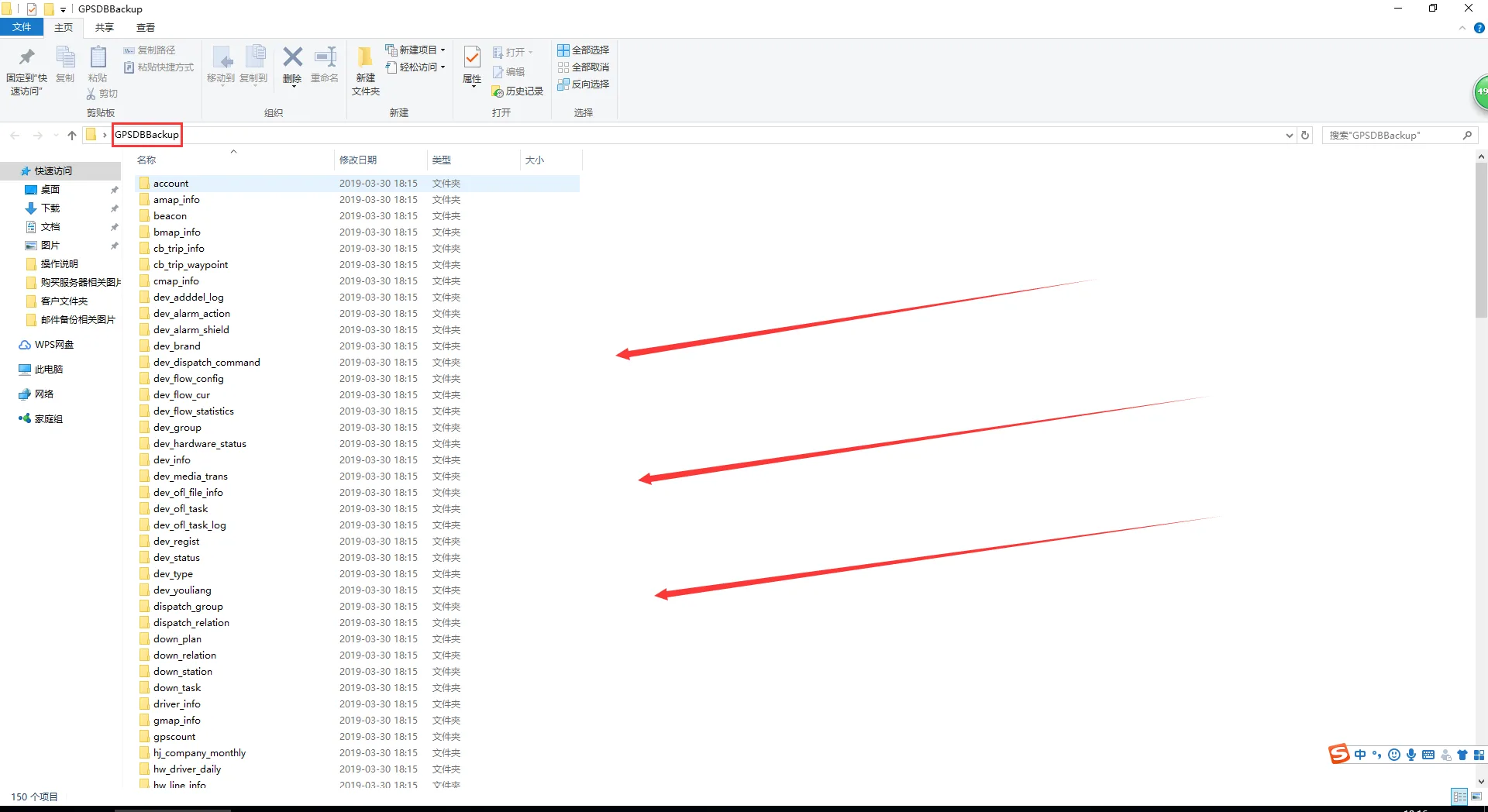
Then it can be used.