Prerequisites:
- The device and computer are in the same LAN segment, and the computer can ping the local IP address of the device
- Or the device with WiFi module is switched to AP mode, and the computer connects to the AP hotspot to access the 192.168.42.100 address
Instructions
- The WEB setup wizard is used to quickly configure the network and register the parameters of the private platform
Operation steps:
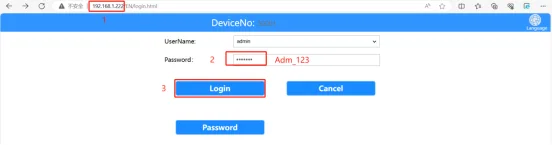
Open the computer browser and enter the local network IP address of the device or the AP hotspot address to come to the WEB login interface, fill in the login password "Adm_123" and click "Login" , refer to the "Function Usage" >>> "Network Function" article introduction for the local network IP address of the device

Enter the username and password on the login page to enter the settings page. The default username is: admin, and the default password is: Adm_123

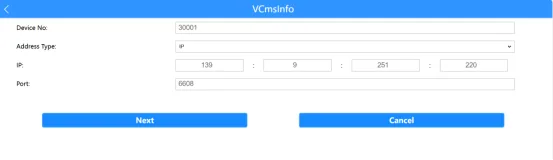
Click Setup Wizard on the setup page to enter the platform setup interface, fill in the device ID number, address type, center address and port of the registered platform, and click Next.

Select the device registration network type. If you insert a 4G card, select 4G. If you connect to a WiFi router, select WiFi or WiFi+4G mode

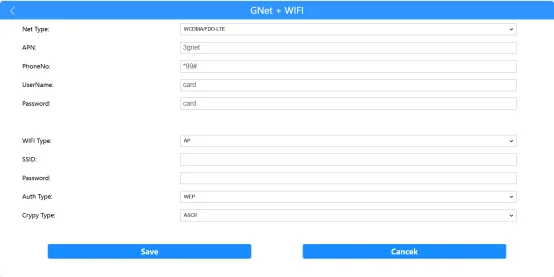
In the GNet + WIFI mode setting interface, enter the 4G SIM card APN parameters: network type, access point, center code, user name, password (domestic operator cards generally do not need to be filled in. The module automatically obtains registration. For example, VPN or IoT cards have specified APN parameters for access, so fill them in here. For specific requirements, ask the SIM card manufacturer) Enter the WIFI type, SSID, password, authentication type and encryption type, and click to complete the setting.