Notes:
- This method is suitable for upgrading firmware when the device is directly connected to the boot device and can ping the IP address. If it cannot ping, refer to the following document for upgrading: TFTP Upgrade Method for Flashing Program - Novatek
- Press Enter after each command in the following steps.
- Extended erase partition commands: flash_eraseall /dev/mtd11 Erase the AI partition of MDVR series flash_eraseall /dev/mtd8 Erase the APP partition of MDVR series
Preparation:
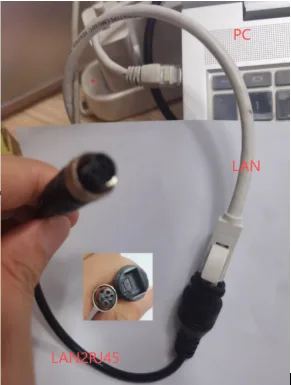
MDVR, HDD OR SD adapter and power cord, aviation connector to network cable, network cable, computer, firmware (consult technical support)
Install a serial port debugging tool or enable the telnet module and open a cmd window on a Windows computer. Search online for specific instructions on enabling this.
Method 1: Upgrading via img file
1.1 Insert the device and copy the img\crc firmware upgrade file to the root directory of the first partition. Insert the device and lock it. Refer to the firmware upgrade article Firmware Upgrade Methods 1.2 After connecting the USB-to-Ethernet cable and the Ethernet cable directly to the computer and powering it on, ping the IP address of the failed device to check if it's reachable. (192.168.1.188)

1.3 Enter “telnet 192.168.1.188” Command login. For username and password, please consult our technical support.
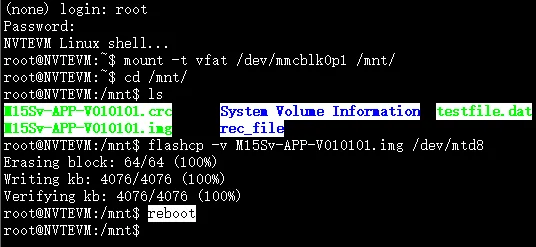
1.4 Enter “mount -t vfat /dev/mmcblk0p1 /mnt/” to mount the SD card. The path may vary depending on the device model; please consult our technical support. 1.5 Enter “cd /mnt/” to switch the mount path. Enter “ls” to check if the firmware root directory copied to the SD card is successfully mounted. 1.6 Enter “flashcp -v M15Sv-APP-V010101.img /dev/mtd8” to erase and re-upgrade the APP firmware (using M15SV as an example). After three OKs are displayed, enter “reboot” to restart the device and check if it boots normally. 1.7 After normal startup, the CRC file will continue to upgrade. Please do not power off the device.
Method 2: Erase Partition CRC File Upgrade
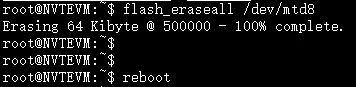
2.1 Insert the device and copy the CRC upgrade firmware to the root directory of the first partition. Insert the device and lock it. Refer to the firmware upgrade article Firmware Upgrade Method 2.2 Connect the USB to Ethernet cable and Ethernet cable directly to the computer, power on the device, and ping the failed device IP address (192.168.43.253) to check if it's reachable. 2.3 Enter the command "telnet 192.168.43.253" to log in. Ask our technical support for the username and password. 2.4 Enter "killall -9 MDVR_App" and press Enter. Enter "feeddog&" and press Enter to kill the program and feed the dog. 2.5 Enter "flash_eraseall" Erase the APP partition "/dev/mtd8". Partitions may vary depending on the device model; please consult our technical support. 2.6 Type "reboot" to restart the device and check if it's upgrading the APP firmware. After the upgrade, check if the system boots normally.