Notes
- Requires prior deployment to obtain the Tongtianxing server login account and address.
- This software uses the Tongtianxing platform's WEB API to obtain information such as our company's device ID, device type, APP version, and all firmware versions.
- Uses the platform's WEB port and port 6607.
- The path "C:\Users\yong\Documents\DeviceData" below is an example using the default C drive user path; the actual path should be changed according to the user's computer user path.
Operation Steps
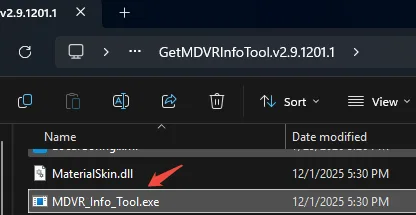
Click to download and extract the software GetMDVRInfoTool.v2.9.1201.1.zip, and run the MVMS_Client.exe program
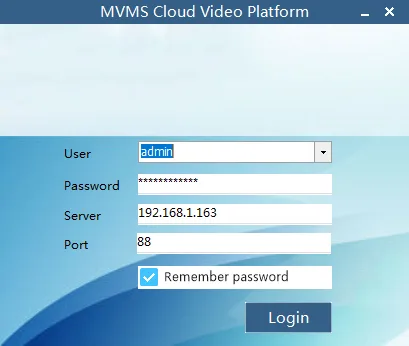
In the login dialog box, log in to the Tongtianxing platform using your username and password. The tool will scan all devices managed by that user.
The default web port is 88, which can be modified in the login dialog box or in the SdkPort field of the LocalConfig.xml configuration file.
After logging in, the program will scan for online devices every 20 seconds and send requests to obtain device information. The obtained device information will be displayed on the interface and also saved to the file "C:\Users\yong\Documents\DeviceData\FullData.xml". When the program is restarted, it will read FullData.xml. Devices already obtained will not be retrieved again and will not be displayed in the interface list. To rescan for devices that have already been obtained, you can back up the FullData.xml file and then delete it; the system will create a new file.
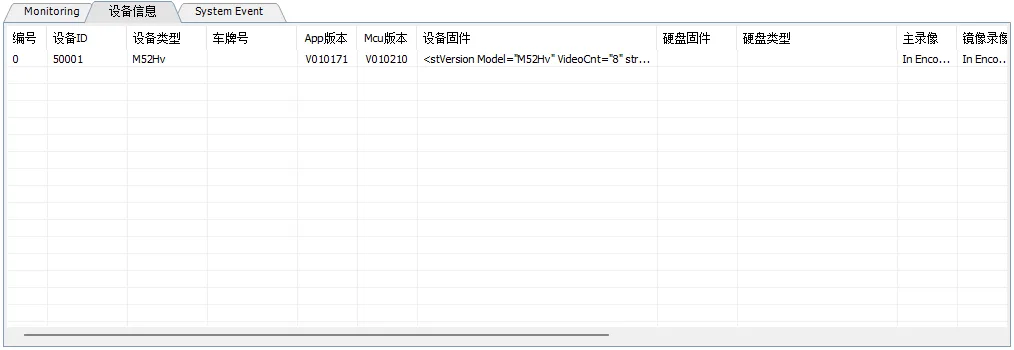
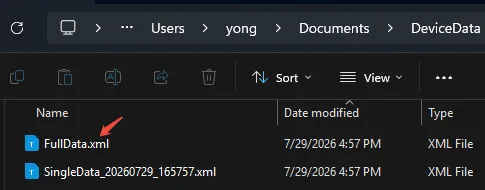
Generate Excel: Drag the FullData.xml file into an empty Excel sheet, and Excel will automatically generate a spreadsheet file.
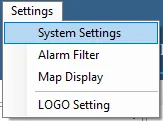
Support System Options: Generate a new data file each time the program starts. Selected: This supports generating a new data file each time the program starts, stored in the directory: "C:\Users\yong\Documents\DeviceData\ File Format: Data_YearMonthDay_HourMinuteSecond.xml" Deselected: The data is stored in "C:\Users\yong\Documents\DeviceData\FullData.xml" under the executable file directory.
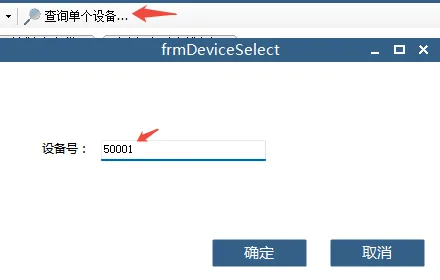
- Single Device Query On the toolbar, click the "Single Device Query." button. Enter the device ID in the pop-up dialog box, and click OK. The query results will then appear in the list.
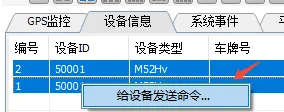
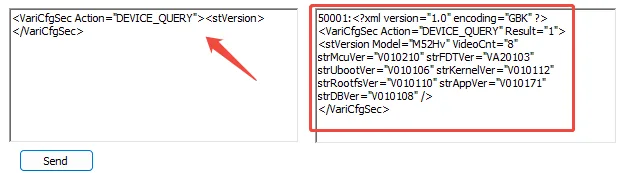
- Sending Custom Commands Specify Device Numbers. You can specify device numbers using one of the following three methods: 8.1 In the Device Number edit box, enter one or more device numbers, separated by commas. In the device information list, click on an entry, and the tool will automatically fill in the device number in the Device Number edit box. In the device information list, select multiple entries (click to start, click + Shift key to end), right-click, and select the menu item 'Send Command to Devices.'. The tool will add a batch of device IDs to the edit box. Select the command to apply it to all devices. 8.2 Enter the xml command in the command window, or select it from the command list. 8.3 Click Send Command. The results will be displayed in the results window. If it is a batch of devices, it will display the ID of each device and the feedback result.