Prerequisites:
- Use a browser to access the WEB in the same network environment as the device (you can use the local IP address of the wired access device or connect to the device hotspot to access 192.168.42.100)
- Upgrade customized firmware
Steps:
Access device WEB (direct network cable access & AP hotspot access) The device connects to the device's AP hotspot through the mobile phone to access the device's 192.168.42.100 address. For the operation steps, refer to the AP hotspot connection instructions - Q&A
The device uses a wired direct connection to access the device's local IP address through the computer to access the WEB address.
Steps to check the local IP address of the device: Connect the vehicle-mounted device to the network cable, use the remote control to enter Menu > Settings > Network Settings > Network
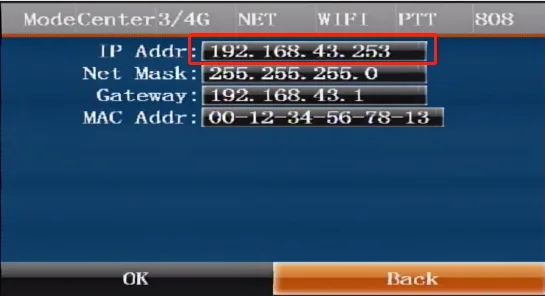
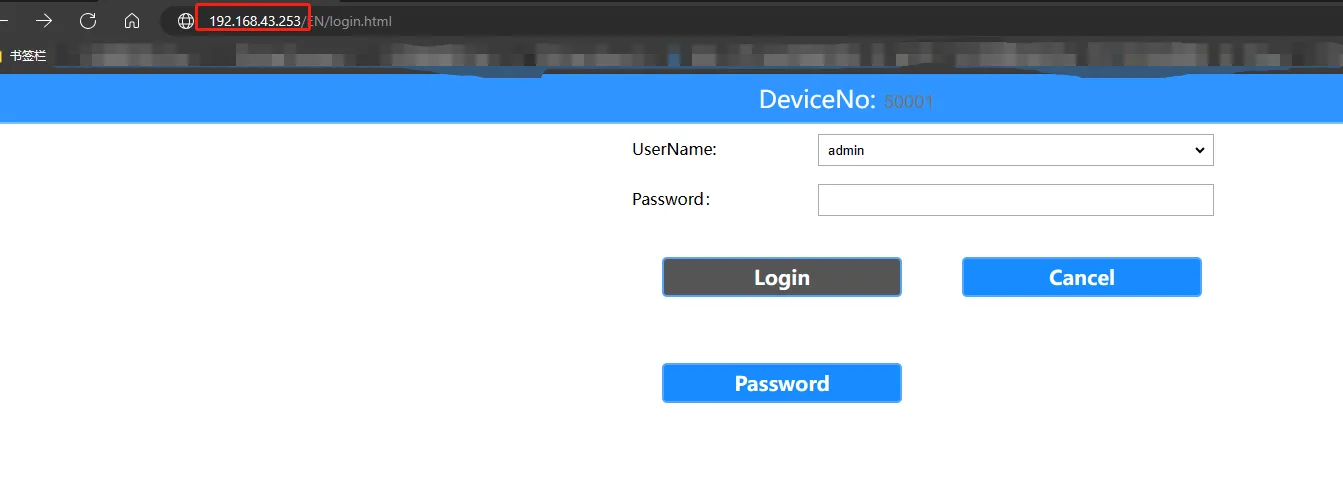
The WEB address of the browser access device, for example, the local IP address of the network cable access device is 192.168.43.253, enter the password "Adm_123" to log in.
Click "General Settings">>"Alarm Settings">>"Left BSD Settings" (select which BSD channel to calibrate based on actual installation needs) to come to the BSD line drawing calibration menu.
 >>
>>
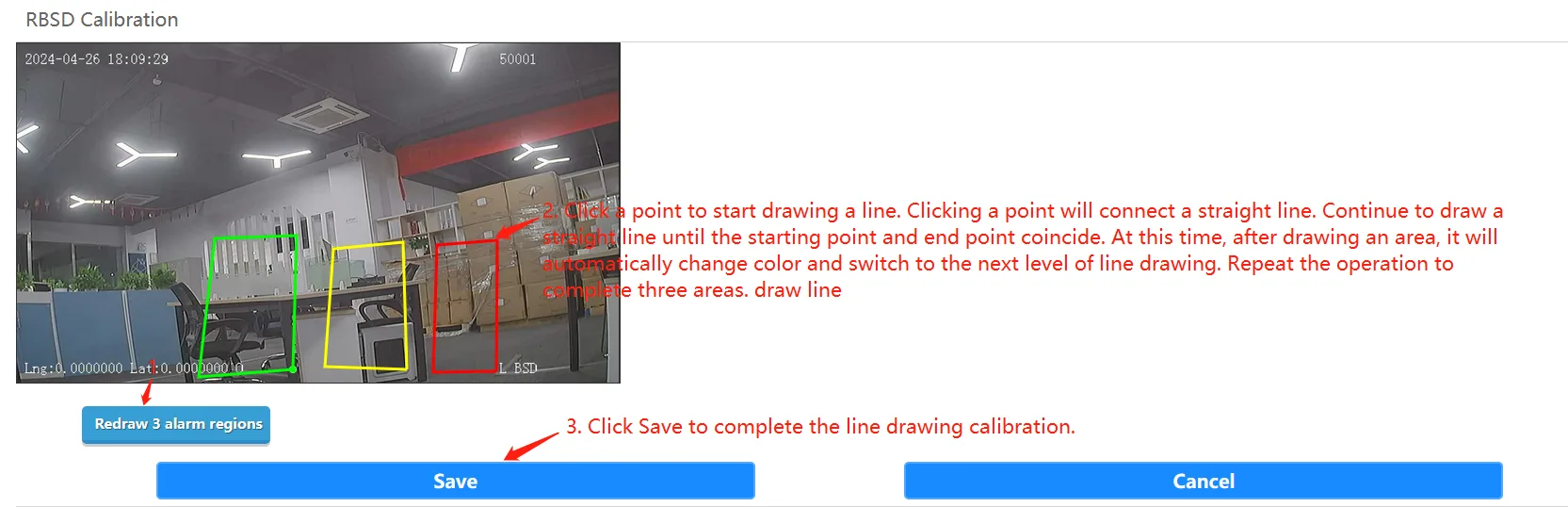
- Click "Redraw 3 Alarm Areas" to start drawing lines, as shown below. After drawing 3 lines, save it and it will take effect. Note that line drawing only supports rectangles and only four lines can be drawn in one area.