Prerequisites:
- Prepare to upgrade the firmware of the matching model, and obtain the firmware to open Firmware Upgrade, Update Table Article Link
Operation steps:
Local copy upgrade method
Unlock and take out the SD card or hard disk in the device, and use a card reader or hard disk reader to connect and insert it into the computer ps: The SD card or hard disk must be recognized and loaded on the device. Otherwise, format the SD or hard disk on the device first
Open "My Computer" on the computer>>>"SD card first partition root directory" Generally in My Computer In the last two drive letter locations, there will be a created "rec_file" folder in the root directory of the first partition

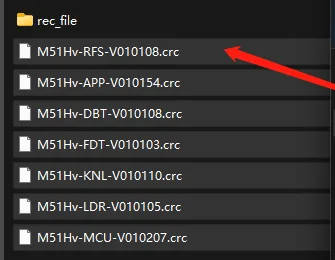
Unzip the downloaded firmware package, copy the ".crc" suffix file to be upgraded to the "root directory of the first partition of the SD card", and after completion, remove the SD card, insert it back into the device and lock it.
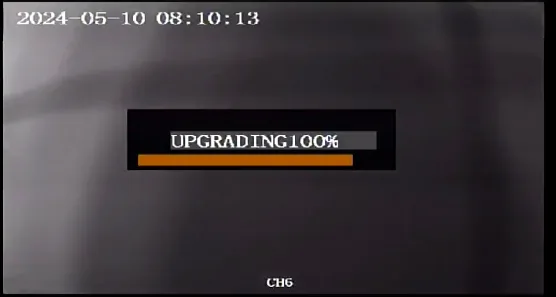
The device will automatically upgrade the firmware when it is powered on. After the upgrade is completed, it will restart once and enter the normal working state
Use the remote control to press the left direction button twice to come to the "Version Number" interface and check whether the version numbers are consistent with the upgrade file version number. If they are consistent, the upgrade is successful.
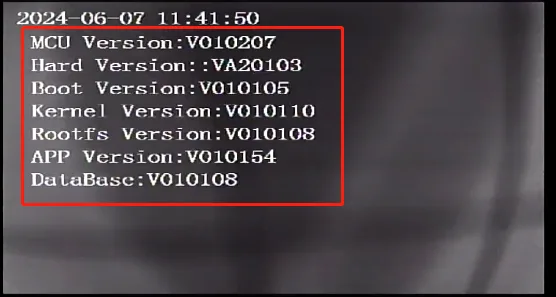
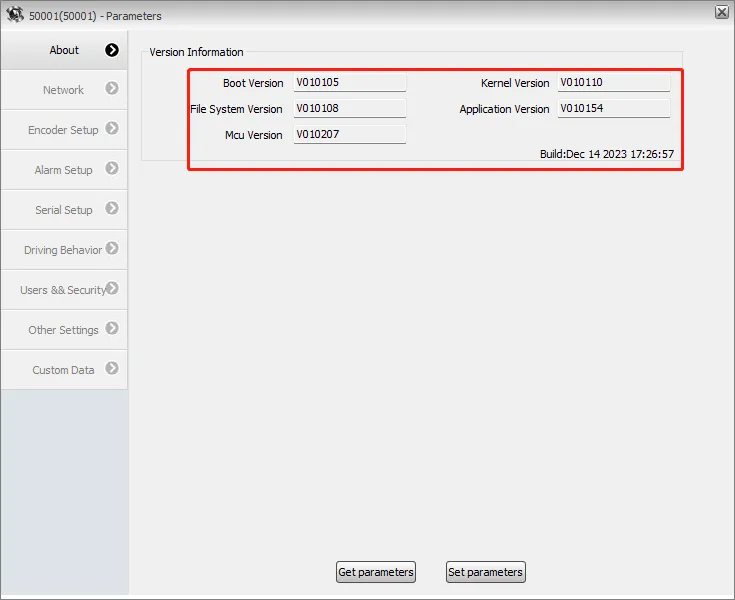
ps: MCU version = MUC Hardware version = FDT Boot program version = LDR Kernel version = KNL File system version = RFS Application version = APP Resource database version = DBT
Remote CMSV6 client upgrade method
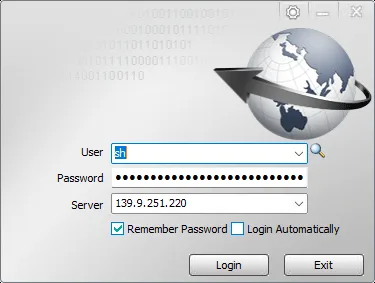
Log in to the client on the computer, right-click the online device, and select "Device Upgrade"
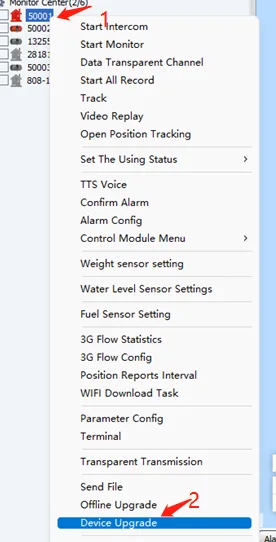
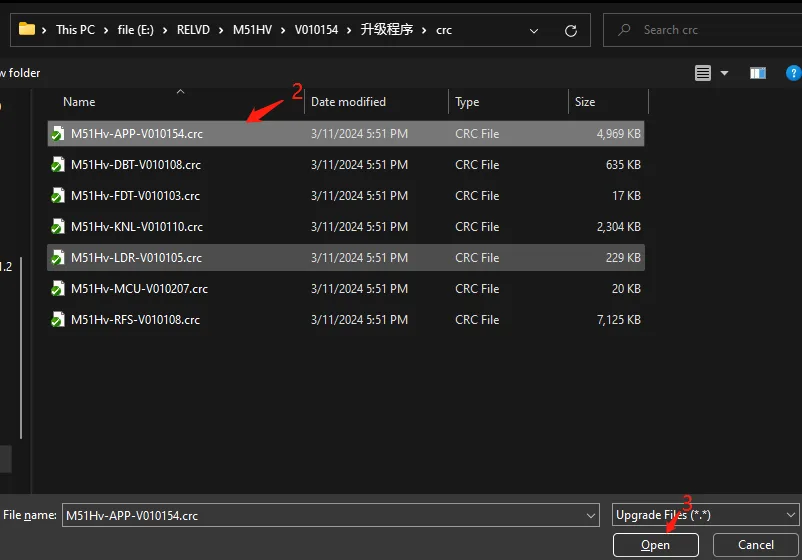
In the Device Upgrade dialog box Click "Browse">>>Select the ".crc" suffix file that needs to be upgraded on the computer>>>"Open"
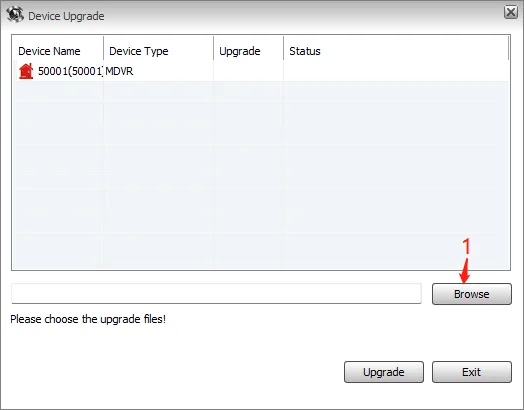
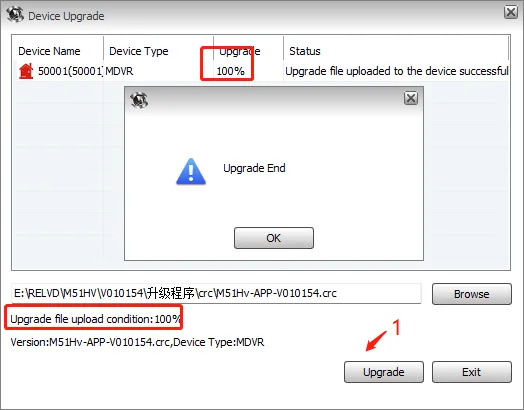
Return to the Device Upgrade dialog box Click the "Upgrade" button, wait for a while and see the display of "100% upgrade", which means the file transfer is complete. Repeat the above operation to upgrade the next file. You don't need to upgrade multiple files and exit.
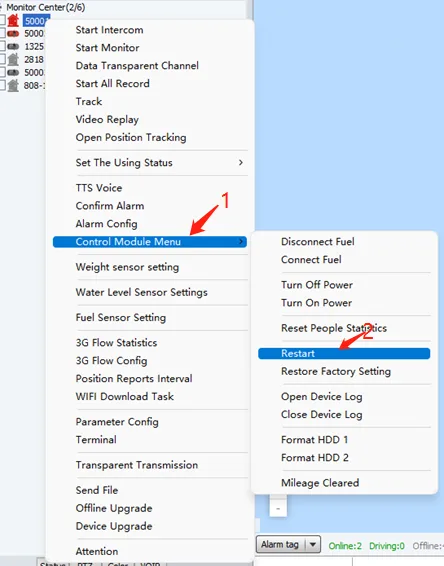
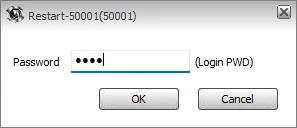
Right-click the online device again, select "Module Control Menu">>>"Restart Device">>>"Enter Login Password">>>"Confirm" When you see the prompt that the restart is successful, it means that the remote restart of the device has been completed. If it fails, check whether the device network is unobstructed. You can open the video or refresh the terminal information to observe ps: If you don't see the restart device button Please find out whether the platform supervisor has assigned control permissions to this login account
The device will automatically upgrade after restarting, and will be online again after completion
Right-click the online device again and select "Terminal Information" to check whether the application (APP) version number is consistent with the upgrade file version number. If it is consistent, the upgrade is successful
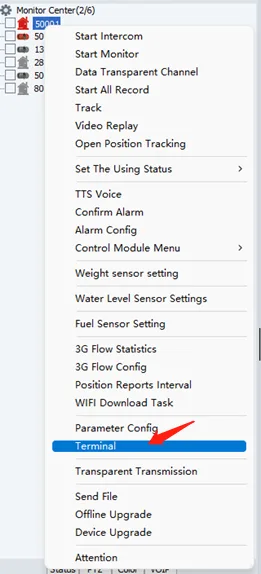
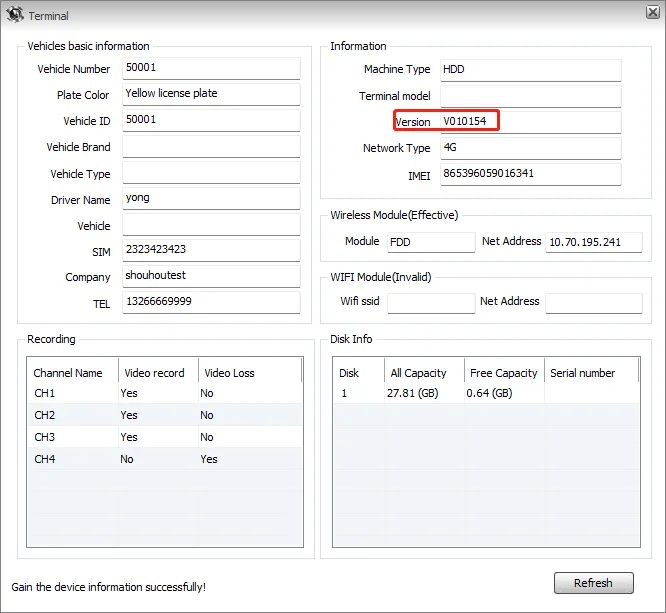
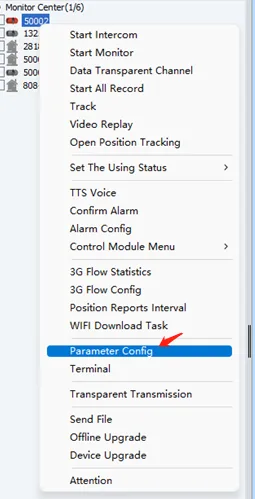
To view other firmware versions, click "Parameter Configuration" Go to the configuration plug-in homepage, and on the right are the firmware version numbers