Prerequisites:
- A usable remote control and a normal display screen
- The device is already in shipping status (AI has been authorized and the algorithm has been imported)
- The device firmware is already a customized version that supports the garbage algorithm
Operation steps:
1. Login menu
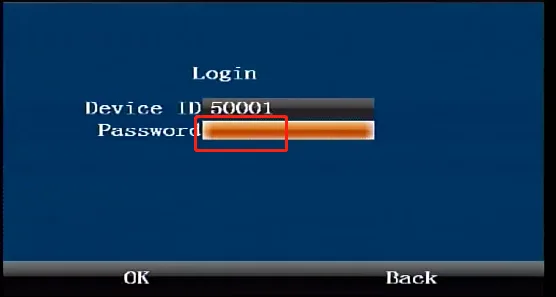
1.1 Press the middle "ENTER" confirmation button on the remote control to enter the login interface and enter the default administrator password "999999"
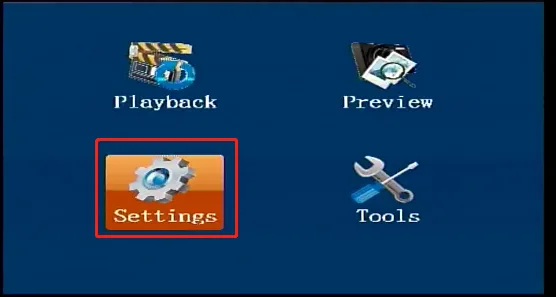
1.2 In the first-level menu interface, press the arrow key to move to the "Settings" button, and press the middle "ENTER" confirmation key to enter the second-level "Settings" menu
1.3 In the second-level "Settings" menu interface, press the right arrow key to move to the "Network Settings" button, and press the middle "ENTER" confirmation key to enter the second-level "Settings" menu Press the "ENTER" confirmation key to enter the third-level "Alarm Settings" menu
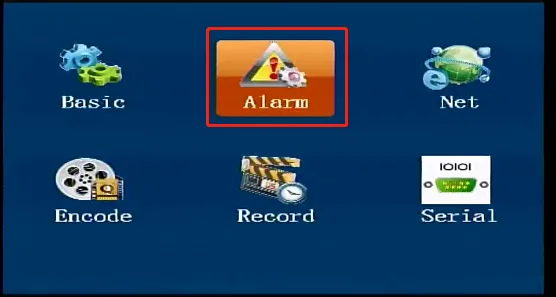
1.4 Third-level "Alarm Settings" menu interface Press the right direction key on the remote control to move to the "AI" menu, and press the middle "ENTER" confirmation key on the remote control to enter the "AI" menu modification status
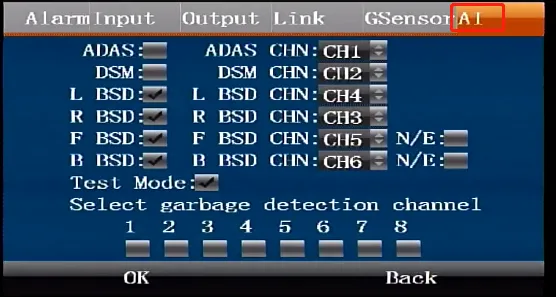
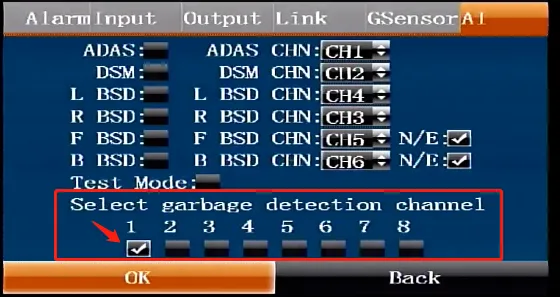
1.5 Press the down direction key on the remote control↓ Move the cursor to the "Select garbage detection channel" checkbox, open which channel to detect garbage as needed, save and restart the device
2. Check whether the garbage algorithm AI is running normally
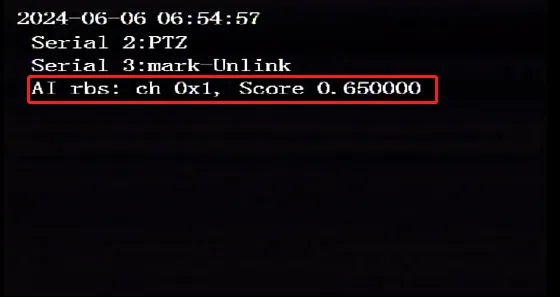
2.1 The device is in the real-time preview main interface. If you press "RETURN" in the lower right corner of the remote control direction key in the menu interface to exit to the real-time preview main interface. Press the left button on the remote control ← to go to the "Serial Port, AI" interface, and check whether the AI status in the red box in the lower left corner is running normally. If it is running normally, there should be the following information: AI rbs: open channel, algorithm threshold