Prerequisites
- The device has been registered on the CMSV7 platform and logged into the client
- Use the client plug-in to issue commands, refer to CMSV7 client plug-in parameter configuration
Operation steps
- Copy the command to configure the PTT IP and port, and use the client parameter configuration plug-in to customize the following format command:
<VariCfgSec Action="DEVICE_SET"><stPttDcn ucFD_AddressType="0" uiFD_IP="120.79.255.229" usFD_Port="6689" ></stPttDcn></VariCfgSec>
Notes: uiFD_IP="Bingheng PTT server IP;usFD_Port="Bingheng PTT server port"
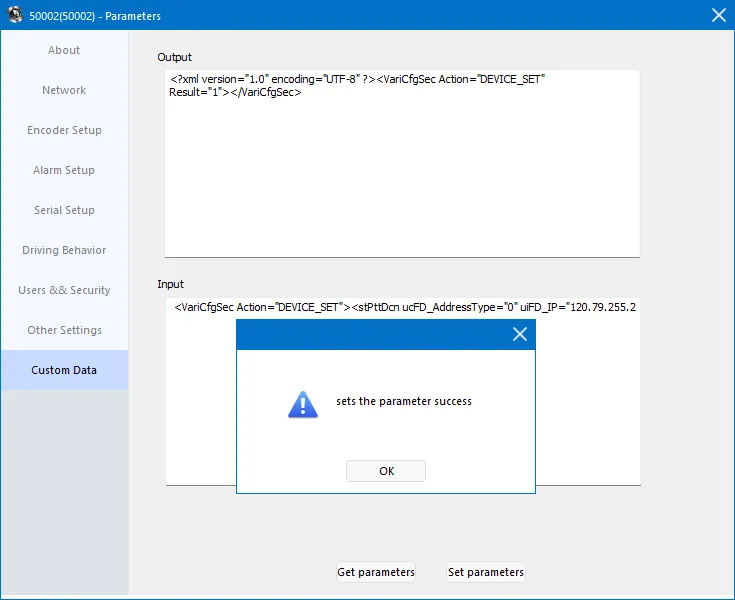
- After sending the configuration, you can copy the query command to check whether the parameters are correct and the configuration is successful
<VariCfgSec Action="DEVICE_QUERY"><stPttDcn></VariCfgSec>
- Copy the command to configure the PTT username and password, and use the client parameter configuration plug-in to customize the following format command:
<VariCfgSec Action="DEVICE_SET"><stPtt strFD_UserName="20200304002" strFD_Password="123456" ucFD_PttType = "1"/></VariCfgSec>
Notes: strFD_UserName="Username";strFD_Password="User password"
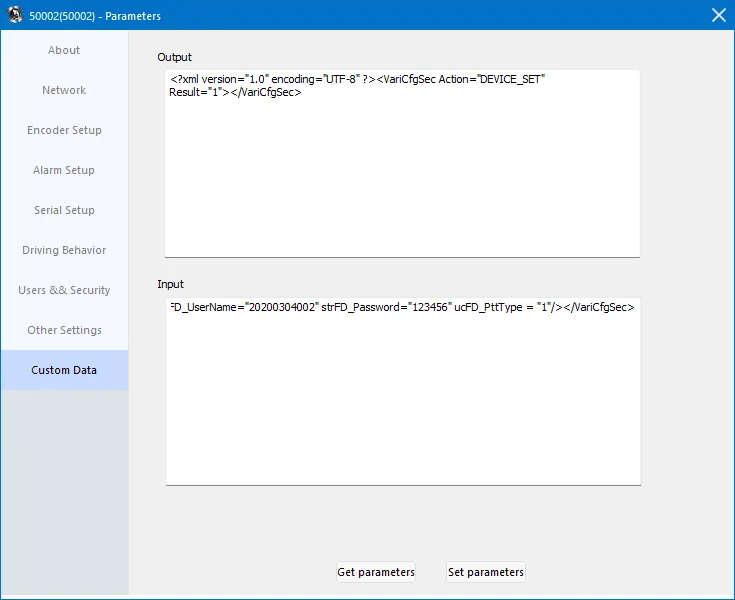
- After sending the configuration, you can copy the query command to check whether the parameters are correct and the configuration is successful.
<VariCfgSec Action="DEVICE_QUERY"><stPtt></VariCfgSec>
- Check whether the PTT server is connected successfully in the network connection status interface. PTT status: DCN request is successful, indicating that the connection to the PTT server is successful. PTT status: Failed, indicating that the connection to the PTT server failed. Please check whether the server IP, port, username and password are correct, and whether the network dial-up is successful. PTT IP: 123.56.93.33, which shows the PTT server IP. PTT Port: 6689, which shows the PTT server port. PTT status: PTT initiated; indicating that the machine is speaking. PTT status: PTT receiving; indicates that the whole device is answering.