Prerequisites
- A usable remote control, a normal display screen
- A usable WiFi network, WiFi antenna, and a WiFi module built into the device
Operation steps
Connect the device to the display screen, connect the WiFi antenna (if you don't know the location, refer to the "Interface Status Definition" column above), and power on the device.
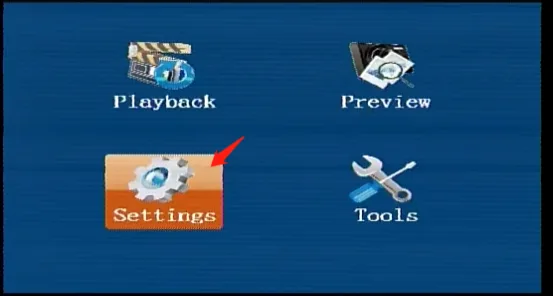
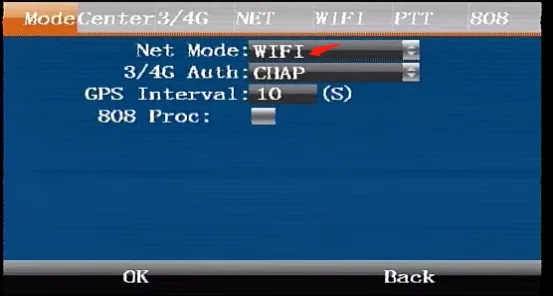
Use the remote control ENTER to enter the device network settings menu, press the confirmation key and press the direction key to select WiFi mode, and confirm to save.
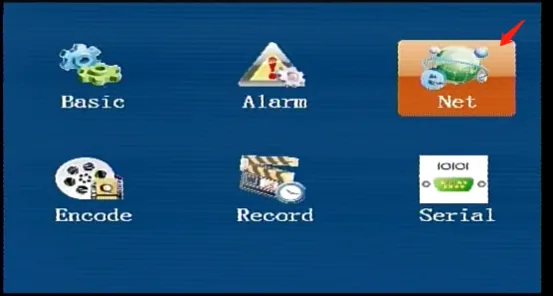
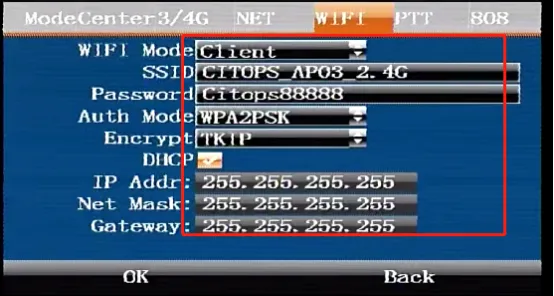
- Press the right button on the remote control to move to the WiFi configuration menu, select WiFi mode "client", fill in the user name, password, authentication method, and encryption type. Usually, current WiFi routers are WPA2PSK authenticated and TKIP or AES encrypted. Do not change the default. If it is an old router, modify it according to the actual parameters; DHCP is checked by default to automatically obtain an IP address. If a fixed WiFi IP is required, uncheck it here and fill in the following IP address, subnet mask, and gateway parameters, confirm and save.
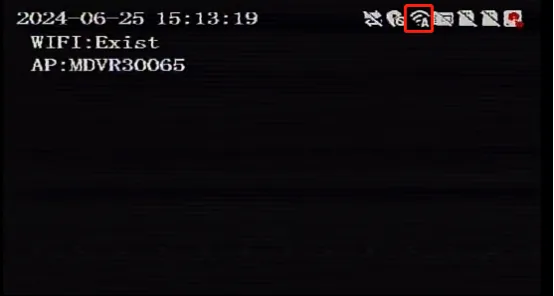
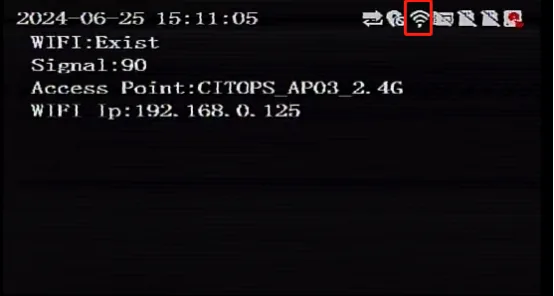
After the WiFi connection is successful, you can return to the real-time preview interface and press the left button of the remote control to view the WiFi status, as shown below.
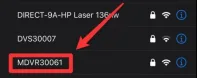
- WiFi configuration AP is hotspot mode. Select AP in the WiFi mode menu above and confirm to save. After the AP mode is successfully switched, you can search for the hotspot starting with "MDVR" + device ID number through your mobile phone and connect. The default password is 999999