Prerequisites:
Remote control local query:
- MDVR host, remote control, display screen.
- Storage media exists
Platform remote query:
- Log in to the client, the device is online, and the storage media exists
Description:
- MDVR will automatically detect the storage media inserted into the device, such as hard disk, SD, TF, etc. If the disk does not meet the requirements, it will automatically partition and format it. Each partition uses the FAT32 file system format;
- MDVR divides the storage medium into 2 partitions. The first partition stores video files, and the second partition stores logs, snapshots, temporary buffer data and other files;
- MDVR creates a rec_file directory in the root directory of the first partition, and automatically creates batch video files in the rec_file directory. Each file will be created with a file size of 512GB or 1TB according to different models. Each file ends with the cv1 suffix, such as rec0001.cv1, starting from rec0000.cv1 until the partition size is completed, and each file has a fixed size;
- If the device disk is not low-level formatted, after deleting the video file, it will be reformatted, and the deleted video file can be automatically restored;
- Do not manually create recording files in the rec_file directory, otherwise unpredictable recording anomalies may occur;
Note: If you remove the storage medium from the device and insert it into the computer to play or copy the recording, you cannot use cut files or delete the cv1 recording files in the disk, otherwise after inserting it back into the device, the overall storage space will be reduced by the size of these cut or deleted files.
Operation steps
Use remote control to query locally
- Power on the remote control and enter Menu>>Tools>>Disk Management>>Disk Management Format Interface to format.
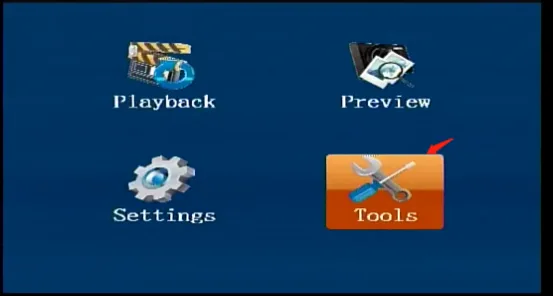
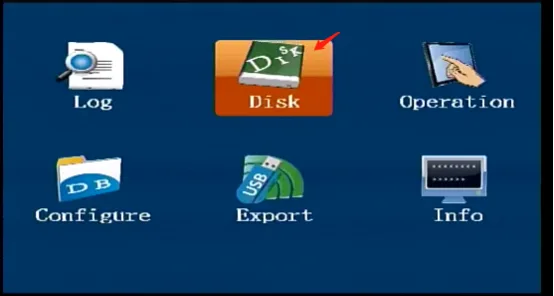
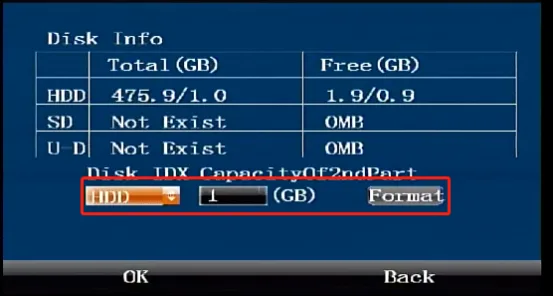
ps: After the device successfully loads the disk, the current information of the disk will be displayed in the interface.
- Menu item description:
Disk index
 : Depending on different models, HDD means hard disk, SD means SD card. Select the disk medium to be formatted by pulling down here;
Size of the second partition
: Depending on different models, HDD means hard disk, SD means SD card. Select the disk medium to be formatted by pulling down here;
Size of the second partition : Specify the size of the second partition here. The remaining space on the disk will be used for the first partition. The default is 2GB. If the project business captures a lot of pictures, this The space can be enlarged, and the size of the second partition should not be less than 1GB;
 : Format button, click this to perform the format configuration action, the system will prompt to save and restart the machine to confirm the pop-up window, and the machine will automatically complete the partitioning and formatting of the corresponding disk after restarting.
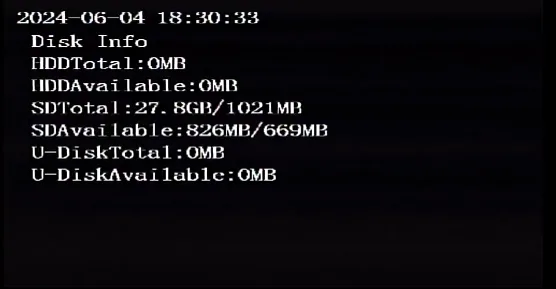
- Check the real-time status of the disk After the device is connected to the display screen, press the right button of the remote control in the real-time video screen state, and the display screen can switch to the real-time disk status display page, as shown below:
CMSV7 platform remote formatting
Client plug-in format
After logging in to the client, click >> Parameter Configuration >> Other Settings >> Select Disk Location >> Format
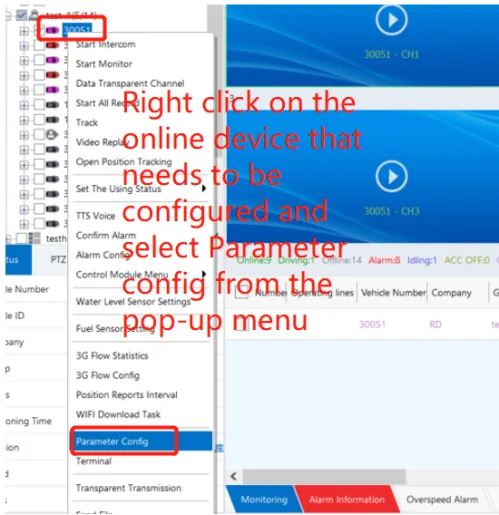
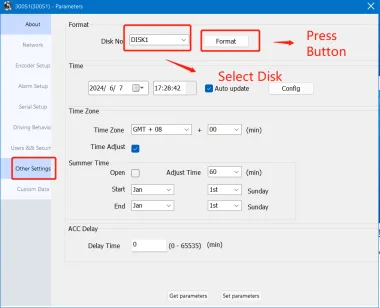
Plugin formatting instructions Disk selection: Depending on the model, for the hard disk M5X series, the hard disk is disk 1 and the SD card is disk 2; for the M32 series, the SSD hard disk is disk 1 and the SD card is disk 2 and 3; for other SD card models, the order of the SD card slot is the same. After remote operation, you need to manually restart the device remotely. After the device restarts, it will automatically complete the partitioning and formatting of the specified disk.
Send command to format
After logging in to the client, click >> Parameter Configuration >> Other Settings >> Custom Data, copy the command and send it. After sending the command, send it again to restart the device to take effect.
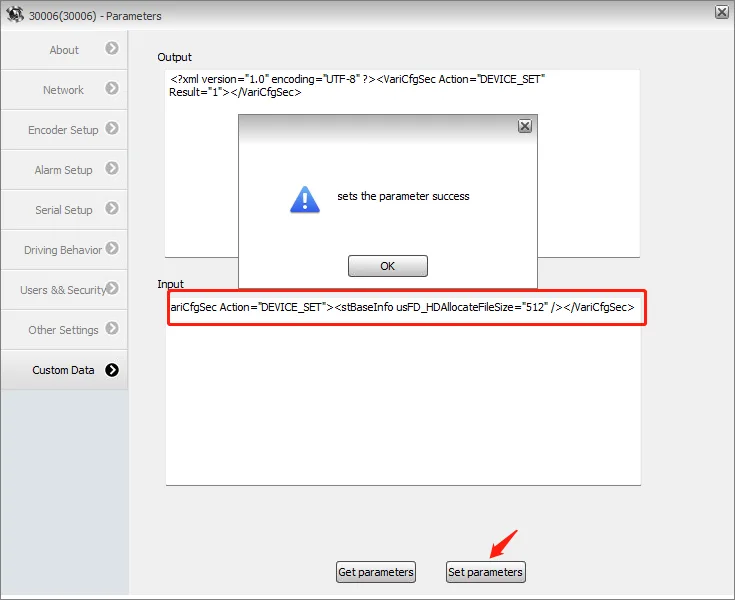
Disk formatting related commands MDVR supports specifying the size of the video file, specifying the disk formatting, and issuing commands to partition the size. Configuration command for pre-allocated size of hard disk video files:
<VariCfgSec Action="DEVICE_SET"><stBaseInfo usFD_HDAllocateFileSize="512" /></VariCfgSec>
Parameter Notes: usFD_HDAllocateFileSize: Indicates the size of the hard disk pre-allocated video files, here it is specified as 512GB, the default size is 1TB.
Configure the pre-allocated size of SD card video files:
<VariCfgSec Action="DEVICE_SET"><stBaseInfo usFD_PreAllocateFileSize="128"></stBaseInfo></VariCfgSec>
Parameter Notes: usFD_PreAllocateFileSize: Indicates the size of the SD card and TF card pre-allocated video files, here it is specified as 128G, the default size is 512GB.
Configure the capacity of the second partition:
<VariCfgSec Action="DEVICE_SET"><stBaseInfo usFD_SizeOf2ndPart="5" /></VariCfgSec>
Parameter Note: usFD_SizeOf2ndPart: Indicates that the size of the second partition of the storage medium is set to 5GB.
Format disk command 1:
<VariCfgSec Action="DEVICE_FORMAT"><stDisk DiskNo="1"/></VariCfgSec>
Parameter Note: stDisk DiskNo: Indicates the disk medium to be formatted 1 indicates the first disk. For the hard disk drive M5X series, the hard disk is disk 1 and the SD card is disk 2; for the M32 series, the SSD hard disk is disk 1 and the SD cards are disks 2 and 3; for other SD card models, the order is the same as the SD card slot.
Format disk command 2:
<VariCfgSec Action="DEVICE_SET"><stBaseInfo ucFD_DiskFormatFlag="3" /></VariCfgSec>
Parameter Note: ucFD_DiskFormatFlag: This value is calculated in bits, for example, a value of 1 indicates the first disk, a value of 2 indicates the second disk, and a value of 3 indicates that both the first and second disks are reformatted.