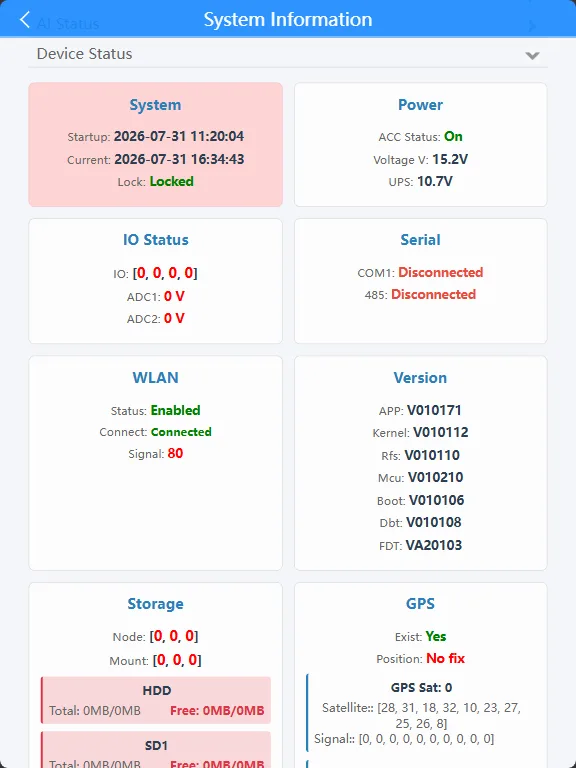
Prerequisites:
- The device and computer are in the same LAN segment, and the computer can ping the local IP address of the device
- Or the device with WiFi module is switched to AP mode, and the computer connects to the AP hotspot to access the 192.168.42.100 address
Description
- The built-in WEB system of MDVR can provide information data of some business operations of the device, including: positioning, wireless dial-up, WIFI, CMS platform, storage media, IO, version, ACC status, CMSV6 platform, and real-time business status data of each module of AI module;
- Applicable models, except M15Hv, all MDVRs have built-in WEB system;
- Network connection method: You can connect the device AP hotspot through the computer, the vehicle-mounted device through the wired network or the device WIFI is connected to the WIFI router, and the computer or mobile phone must be in the same LAN as the vehicle-mounted device;
- Network connection tool: You can enter the network IP of the device through the browser of the computer or mobile phone, or use the mobile phone to connect to the device hotspot and use CMSV6 APP software, discover the device, click configuration to enter the device WEB interface;
- The factory default wired network IP address of the device is: 192.168.43.253, the IP of the hotspot AP is: 192.168.42.100; please make sure that the computer and the device you are accessing are in the same LAN segment. You can add the same network segment as the device on the computer or modify the device's wired network to the same network segment as the computer to ensure that the network link is connected;
- The wired network port of the vehicle-mounted MDVR is generally an aviation head interface, so please use a wired network conversion cable to connect to the LAN, that is, an aviation head to RJ45 adapter cable;
- The data in the WEB will not automatically refresh the data in real time, and you need to manually click the browser to refresh the page.
Operation steps:
Open the computer browser and enter the device local network IP address or AP hotspot address to the WEB login interface, fill in the login password "Adm_123" and click "Login". For the device local network IP address, refer to "Function Usage" >>> "Network Function" article introduction

Enter the username and password on the login page to enter the settings page. The default username is: admin, and the default password is: Adm_123

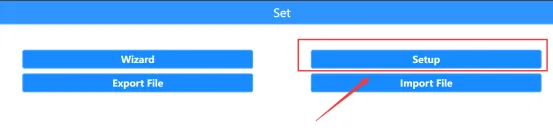
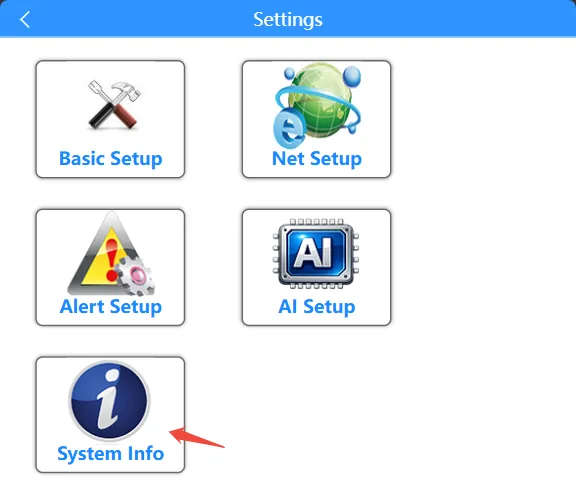
Click on the settings page General Settings >> System Information Enter the system information interface
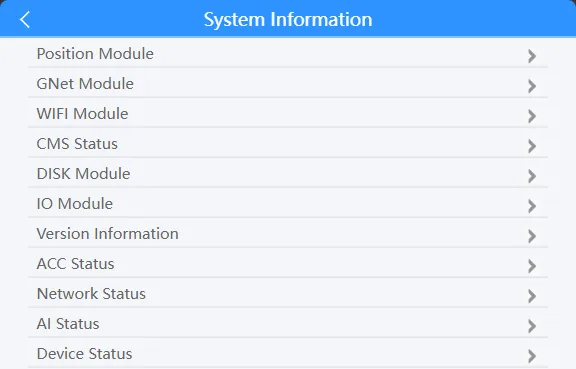
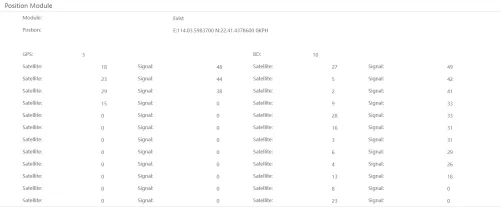
Click the Positioning Module bar to view the current GPS satellite information, including the GPS module status, the positioning latitude and longitude data after positioning, and the current GPS satellite and Beidou satellite search data.
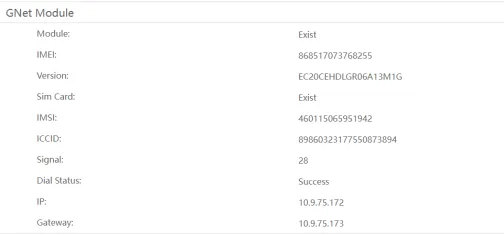
Click the GNet module bar to view the real-time status data of the current SIM card dialing, including the module's IMEI, version, SIM card's IMSI and ICCID number. If the dialing is successful, the obtained IP address and gateway as well as the current signal value will be displayed.
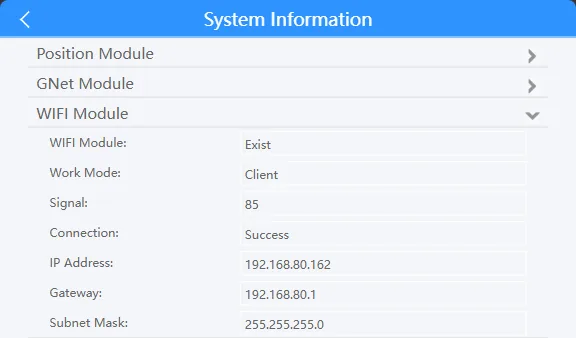
Click the WIFI module bar to view the working status of the current WIFI module, including the working mode, signal value, and whether the dialing is successful.
Click the CMS module bar to view the registration connection status of several platforms, including CMSV7, 808/1078 platform, and national standard GB28181 platform.

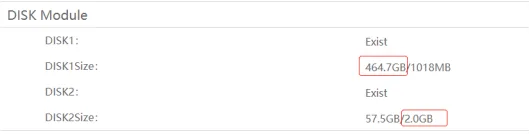
Click the DISK module bar to view the disk information inserted in the current device, such as whether the loading is successful, the disk size, the first partition size in front of the disk size, and the second partition size behind.
Click the IO module bar to display the status of the current device tail line Sensor Input. If it is high level, it will display H, and if it is low level, it will display L.

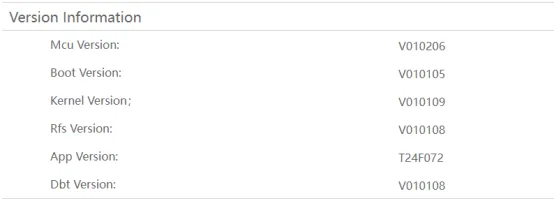
Click the Version Information bar to display the version information of each firmware program in the current device
Click the ACC Status bar to display the ACC status of the current device and the authentication result of the encryption chip.

Click the Network Status Bar to display the connection information of CMSV7, including the platform IP, device ID, and whether the registration is successful.

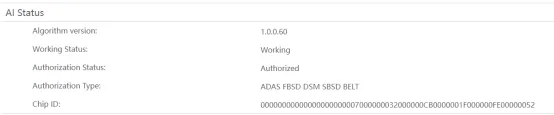
Click the AI Status Bar to display the current running status of the AI model, including the algorithm library version number, whether the AI module is running normally, the authorization type, and the chip ID number.
Clicking "Device Status Monitoring" will put the system into test mode, allowing you to centrally view the current status of each module.