Important Notes
- Only supports vehicle configuration via device-specific protocols;
- Online vehicle network must be stable and uninterrupted;
- Some configuration functions require device support to take effect;
- "Intelligent Recognition Configuration" is not currently enabled;
- For instructions on installing the latest plugin, please refer to: Client - Parameter Configuration Plugin Replacement
Operation Steps
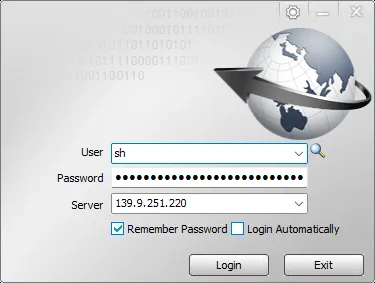
Log in to the client using your account
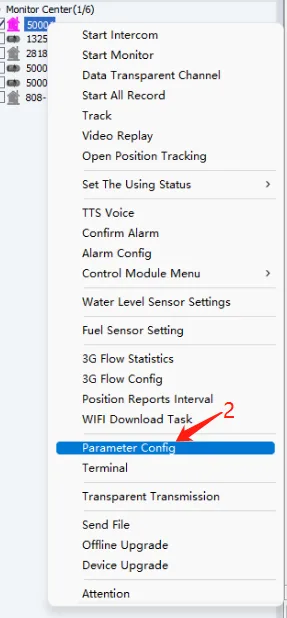
Right-click the online vehicle that needs modification in the default monitoring interface and click "Parameter Configuration".
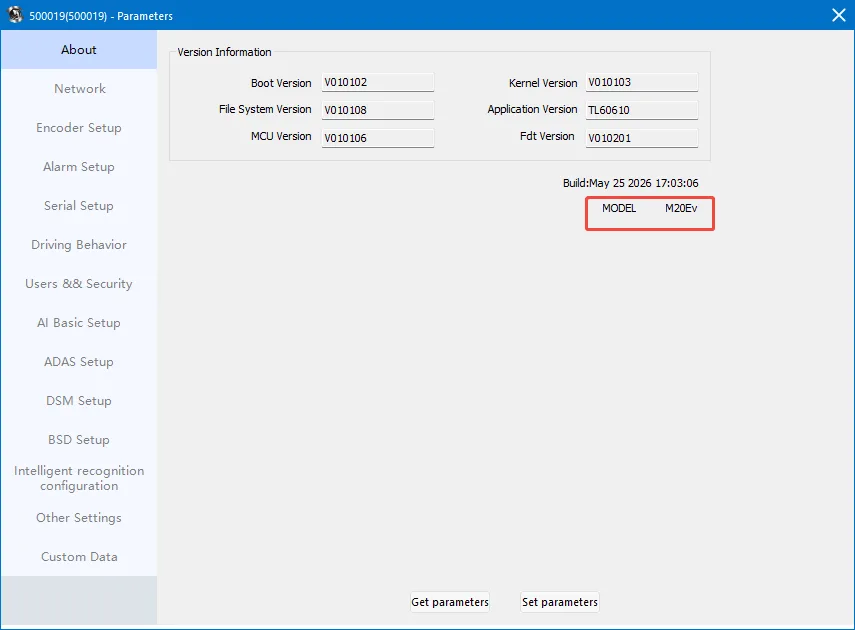
About the interface: You can view the device version number. Double-clicking the right mouse button on this interface will display the device model.
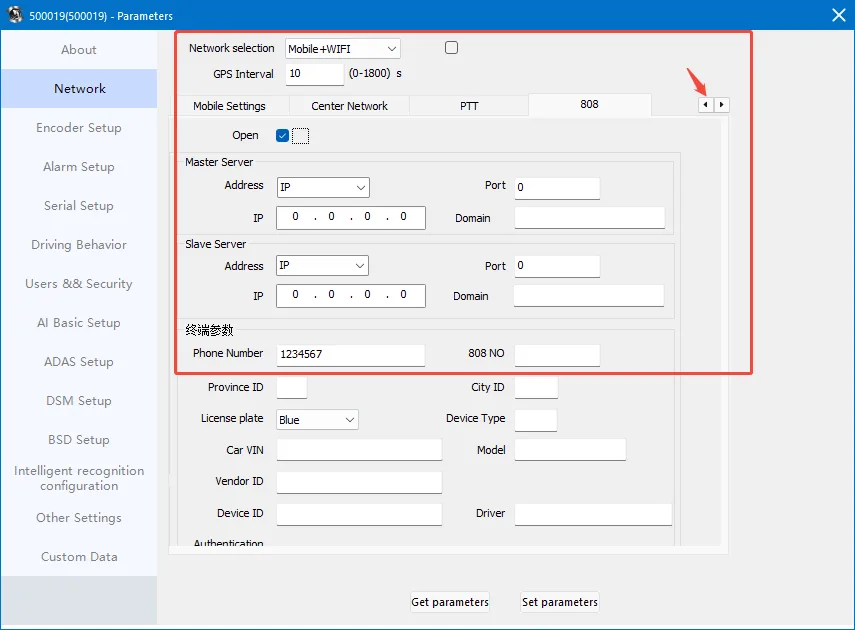
Network Interface: On this interface, you can modify the network mode, GPS upload interval, local IP, WiFi, and 4/5G parameters. The video platform refers to the TTX proprietary protocol. Click the right arrow to turn the page and set parameters for PTT, 808 platform, etc. To configure the 808 platform, all 808 parameters highlighted in the image below must be filled in (either IP address or domain name is acceptable).
Encoding Settings: You can set the resolution for master and slave stream recording. Video mirroring can be set for camera mirroring (a device restart is required for the settings to take effect). Information Overlay Add an OSD that can turn video on or off. When setting the camera resolution, you need to click "Channel Type Configuration" and modify it in the pop-up window (a restart is also required for the changes to take effect).
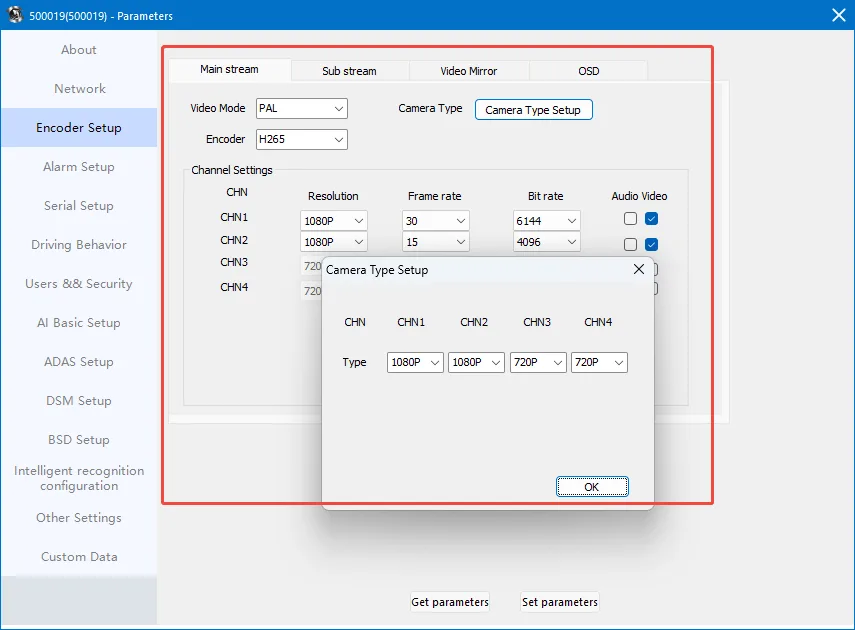
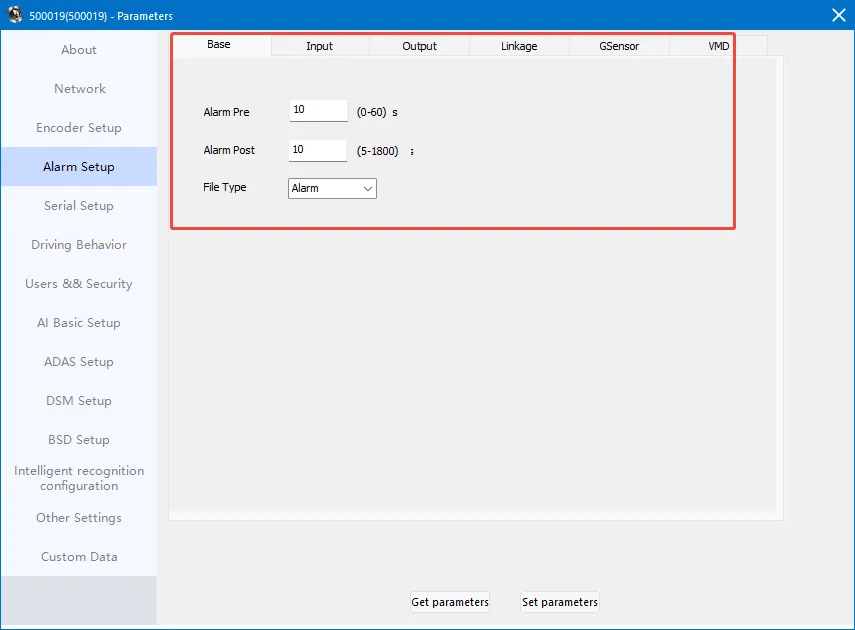
Alarm Settings: Set IO alarm related parameters, Gsensor parameters, etc.
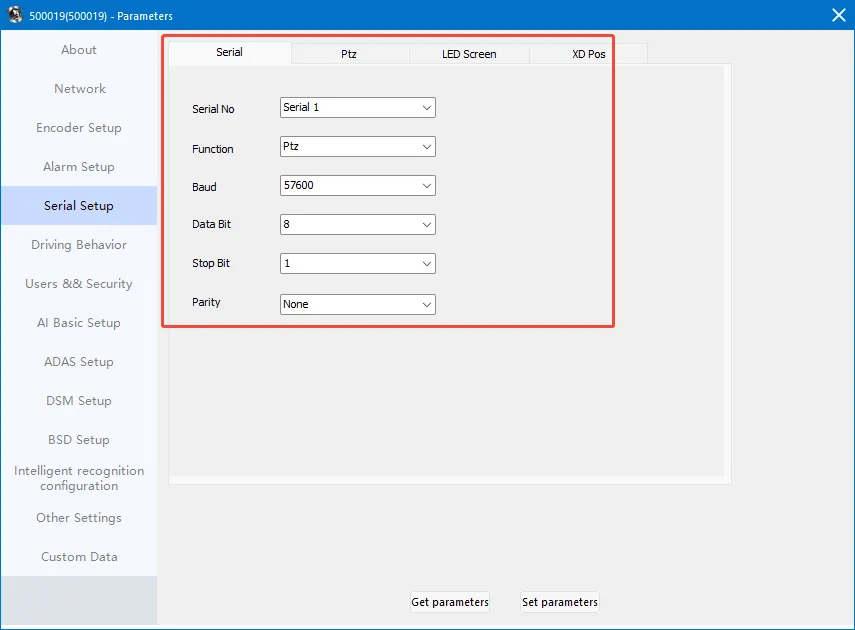
Serial Port Settings: Configure Serial Port and PTZ
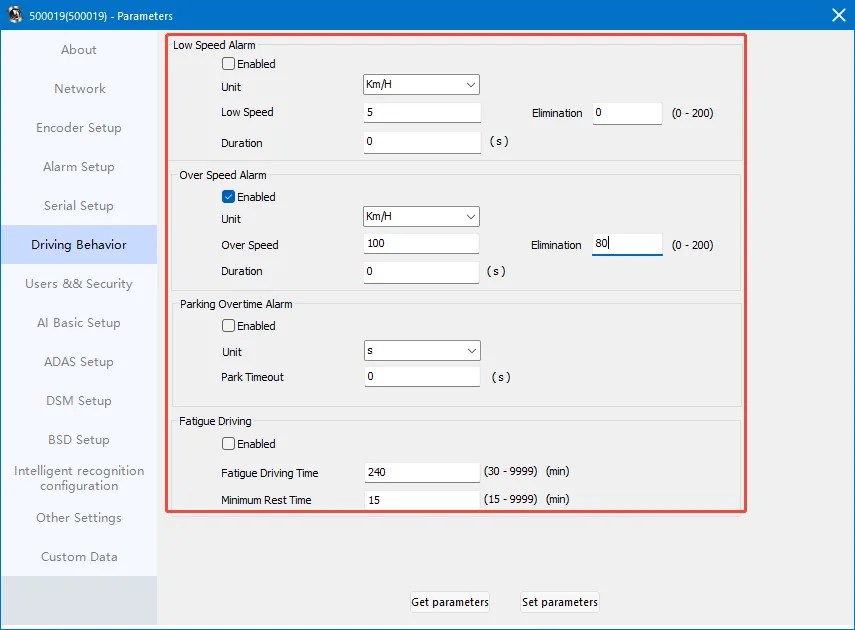
Driving Behavior: Driving-related alarm settings, commonly used overspeed alarm. The overspeed alarm parameters shown in the figure below indicate that when the vehicle speed exceeds 100 km/h and lasts for more than 5 seconds, the platform will receive an overspeed alarm. The overspeed alarm will end when the vehicle speed drops below 80 km/h. If no alarm cancellation threshold is set, overspeed alarms will be reported to the platform in real time regardless of the subsequent vehicle speed.
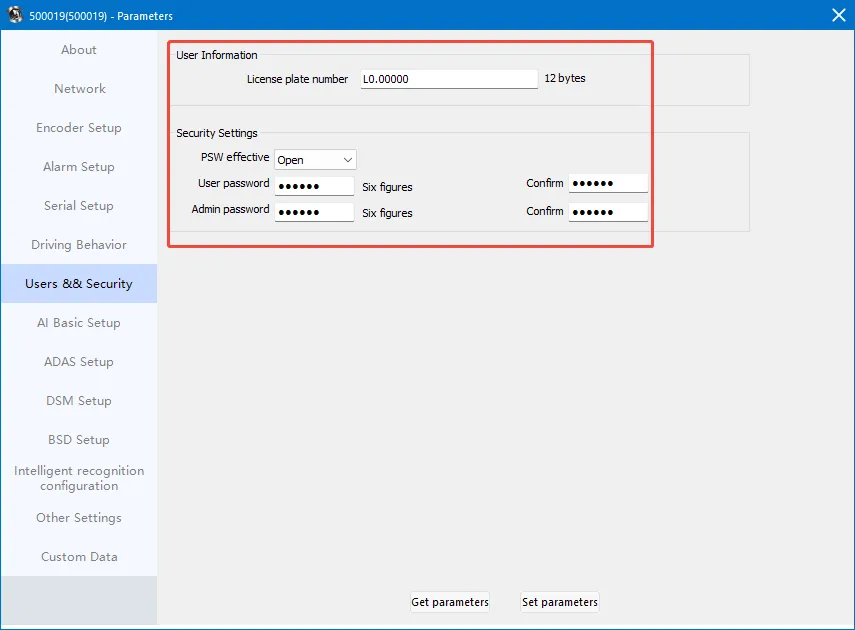
User and Security: Setting License Plate Number and Modifying Device Login Password
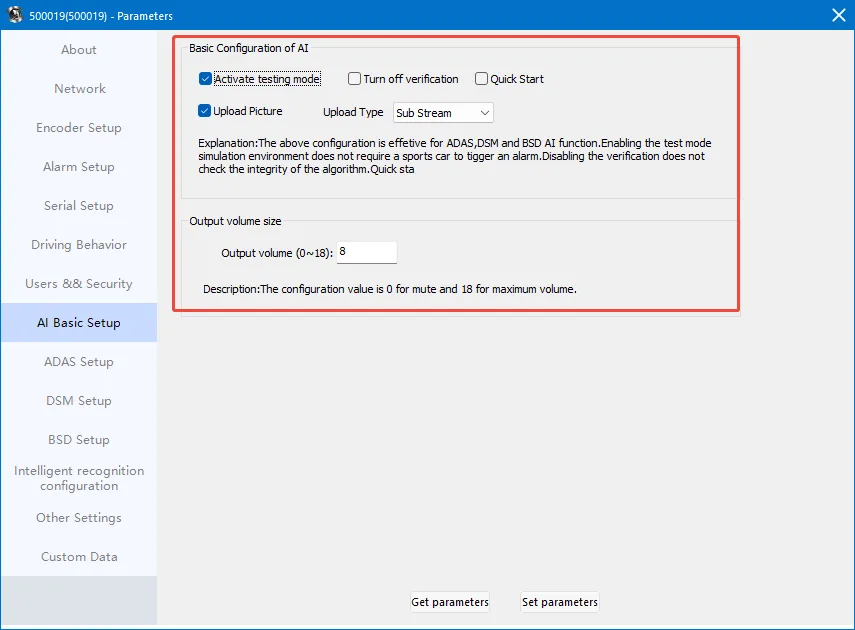
AI Basic Configuration: Set up AI test mode, verification, startup, and other related configurations.
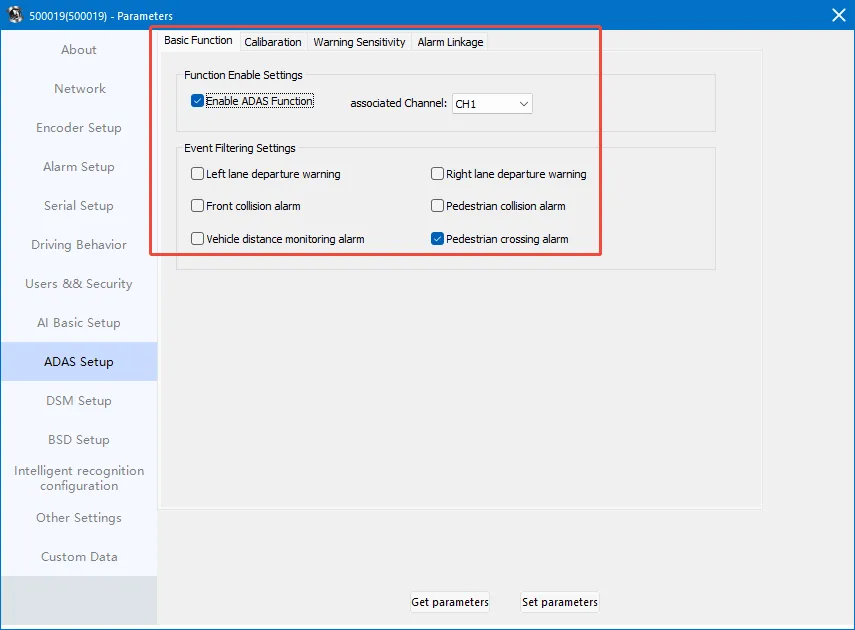
ADAS Configuration: Set up ADAS enabling, calibration, and sensitivity-related parameters.
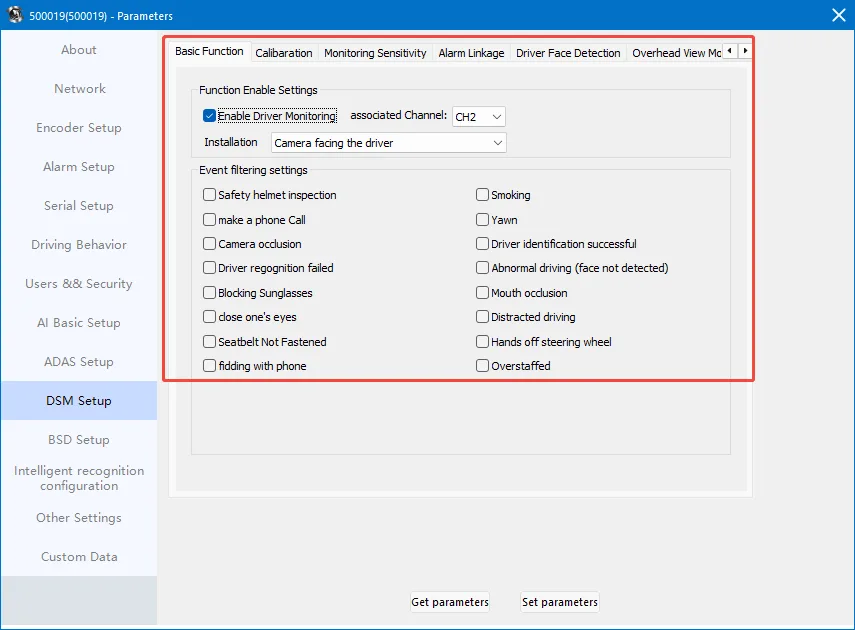
DSM Configuration: Setting DSM to Enable and Sensitivity-Related Parameters
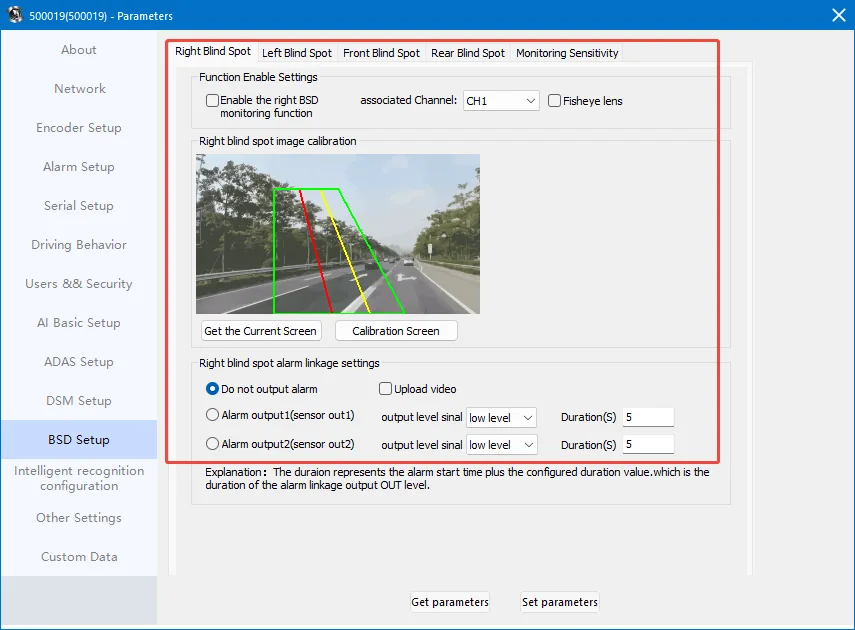
BSD Configuration: Configure the four BSD settings (left, right, front, and back) and sensitivity-related parameters.
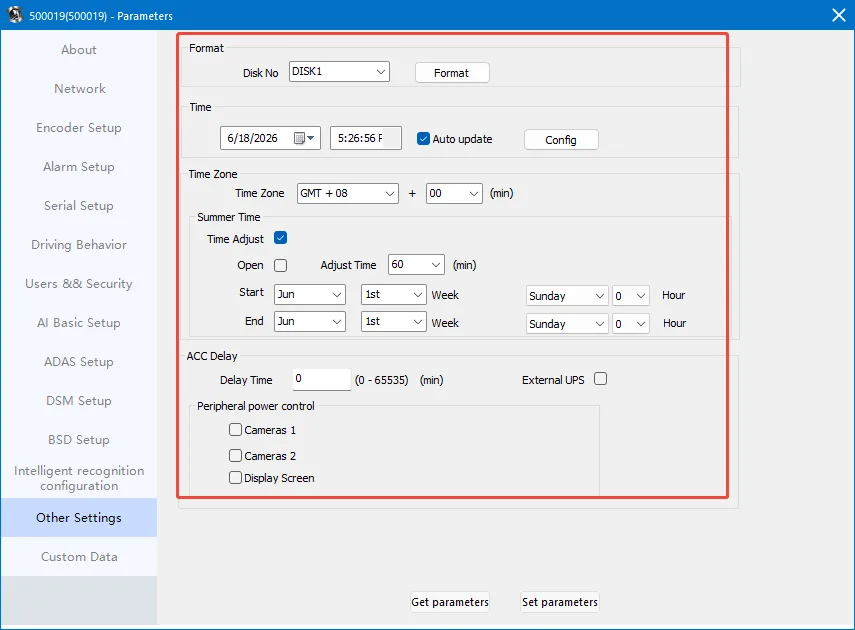
Other Settings: Mainly configure parameters such as time, time zone, daylight saving time, and delayed shutdown.
Custom Data: Custom commands can be issued to set or query device parameters. After entering the parameters in the input box, click "Set Parameters". The output box will return the results. For specific custom commands, please refer to our FAQ link to set and query parameters, or consult our technical support.
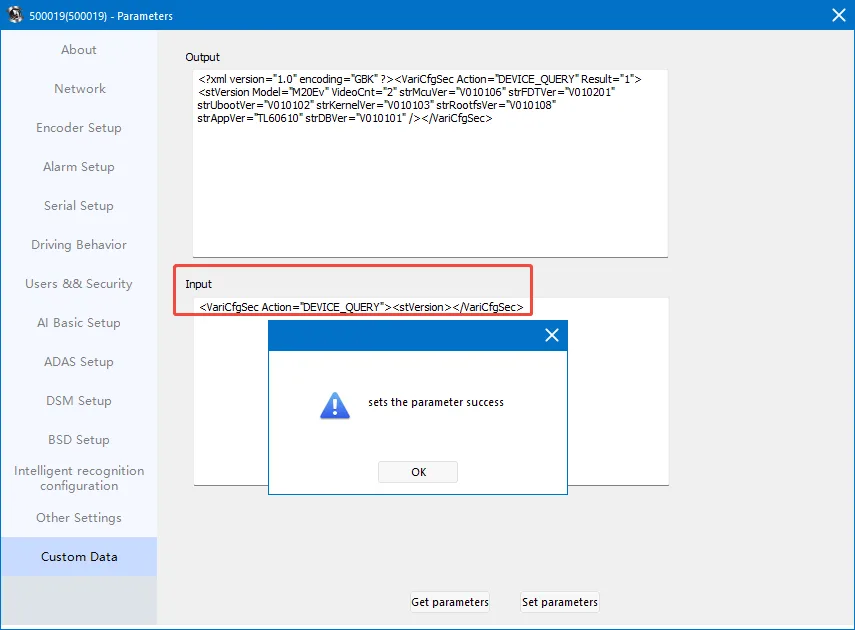
ps: If a failure message or no response is displayed, please check if the vehicle is online normally, if the copied parameters are correct, and if the device does not support this command. PS: For common parameter commands, please refer to Common configuration parameter instructionsand Common query parameter instructions