Prerequisites
Remote control configuration:
- Available remote control, normal display screen
Platform configuration:
- The device has been registered on the platform
- An account with parameter configuration permission and installed client
Operation steps
Use the remote control display menu to open
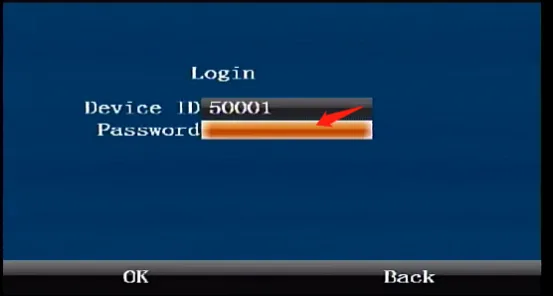
Press the remote control [ENTER] key to enter the login interface, enter the password "999999", and automatically log in to the main menu
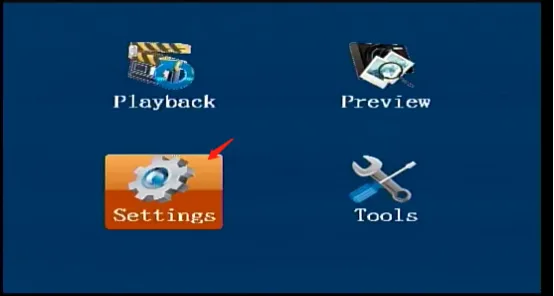
Select [Settings] in the main menu interface and press the "ENTER" key to enter the settings interface
 )
)
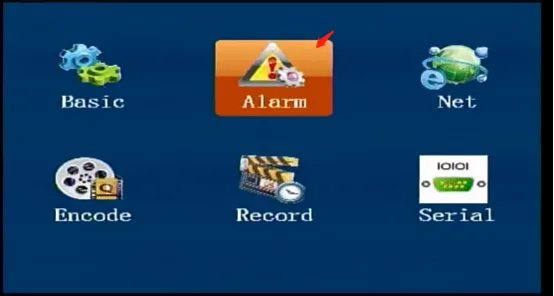
Select [Alarm] in the [Settings] interface, and press the "ENTER" key to enter the alarm settings interface
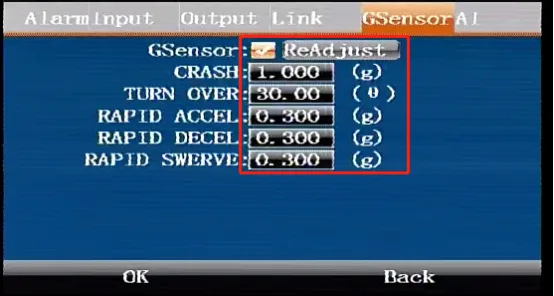
In the [Alarm Settings] interface, press the right arrow key to come to the [Acceleration] interface, press the "ENTER" key to enter the editing state, press the down arrow key to move to the Enable checkbox, check Enable, and confirm to save.
Platform sends command to start
Log in to the platform client with an account and use the client plug-in to send a command to start. For usage, refer to Tongtianxing Client Plug-in Online Configuration Tool
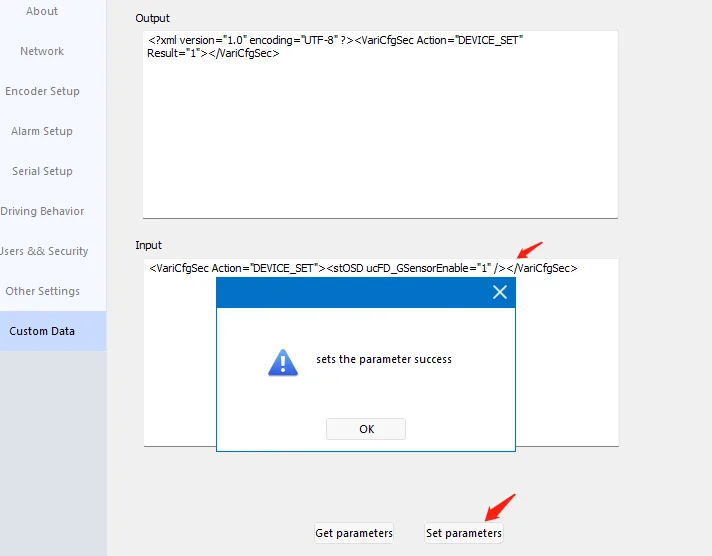
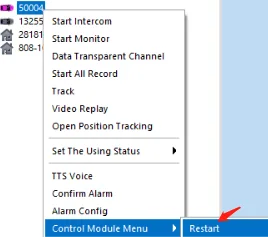
Copy the following command in the input box and click "Set Parameters". After completion, remotely restart the device to take effect.
<VariCfgSec Action="DEVICE_SET"><stOSD ucFD_GSensorEnable="1" /></VariCfgSec>
Dynamic calibration after turning on
Turn on this function first, connect the GPS antenna to make it locate successfully
Drive the vehicle to a flat road and drive straight at a speed of more than 20KM/H, and keep driving for more than 10s
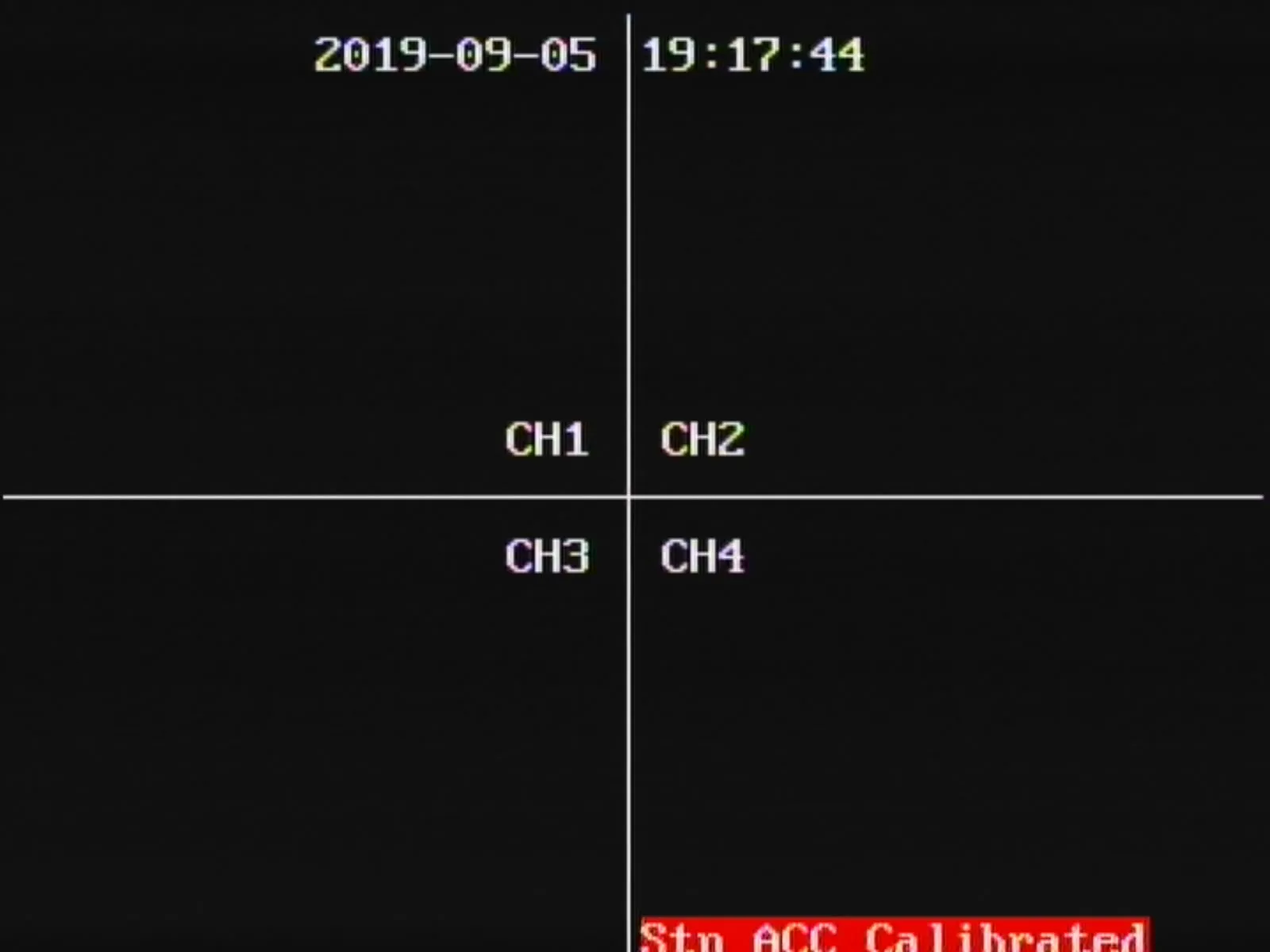
Brake slightly and step on the emergency brake to complete the calibration. After the calibration is successful, you can check the status on the display or listen to the voice prompt (prerequisite to import this voice package) Show Mtn ACC Calibrated means calibration is successful Displaying Stn ACC Calibrated means calibration is not successful
Description of each alarm field
Rollover: rollover Overturn: rollover Front Impact: collision Rear Impact: rear-end collision (by the rear vehicle) Left Impact: left collision Right Impact: right collision Harsh Acceleration: rapid acceleration Harsh Braking: rapid braking Left Harsh Cornering: sharp left turn Right Harsh Cornering: sharp right turn