Prerequisites:
- The device can start normally;
- SD or HDD has been inserted (if the device supports it);
- The remote control can be used and the display screen displays normally;
Graphic description
Status 1 does not exist
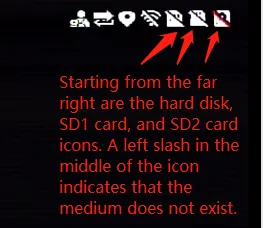
Connect the device to the display screen and check the status of the two icons on the far right in the upper right corner. From right to left, they are HDDSD icons. As shown below:
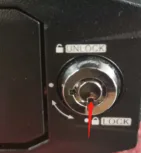
Check whether the device lock switch is in the locked position, as shown below:
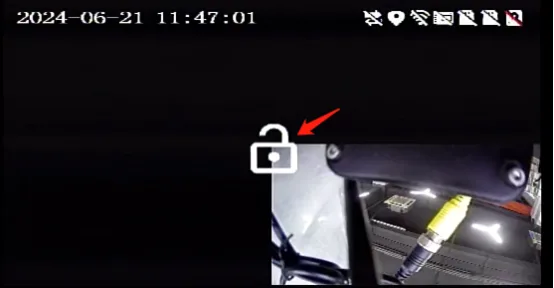
Check if the unlock icon appears on the display, as shown below:
Check if the HDD or SD slot is in place (there will be a rebound feeling when it is in place), and check if the HDD or SD gold finger contacts are oxidized, corroded, or detached. As shown below:

Status 2: Unmounted
Connect the device to the display screen and check the status of the two icons on the far right in the upper right corner. From right to left, they are HDDSD icons. As shown below:
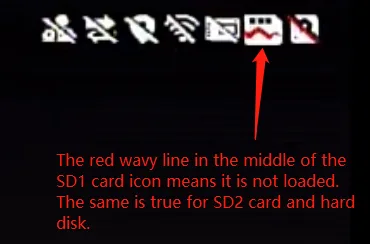
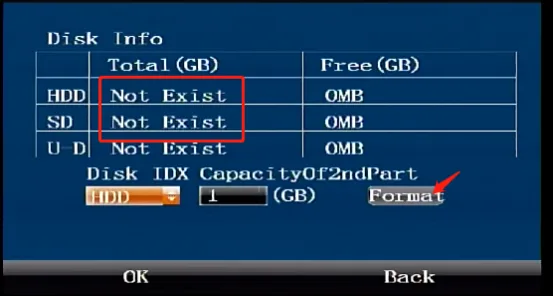
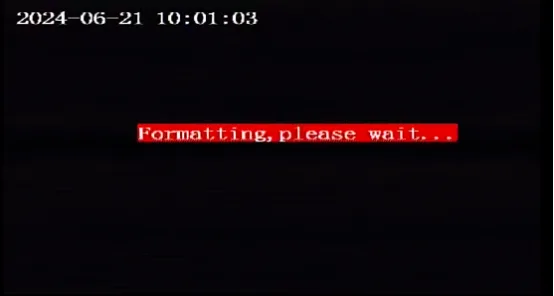
Press the Enter key on the remote control and enter the password "999999" to enter the Tools menu >>> Disk Management >>> Press the key to move to the Format button and press the Enter key to confirm the formatting. In the pop-up window, select "Yes" to take effect and restart. The device will restart and start formatting and prompt that it is formatting. As shown below:
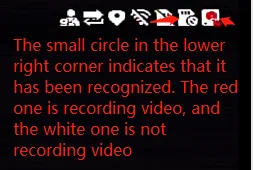
After formatting, check whether the HDD or SD can be recognized. As shown below:
Unlock and remove the HDD or SD, connect it to the computer using a reader and writer, and check if it can be recognized. Use the DiskGeniusexe disk management tool for partitioning to format it. If the format is successful, unplug and insert the device to close the lock. Repeat step 2.1 to manually format the MDVR. If there is an abnormal formatting error during computer operation, it cannot be used and needs to be replaced, as shown in the following
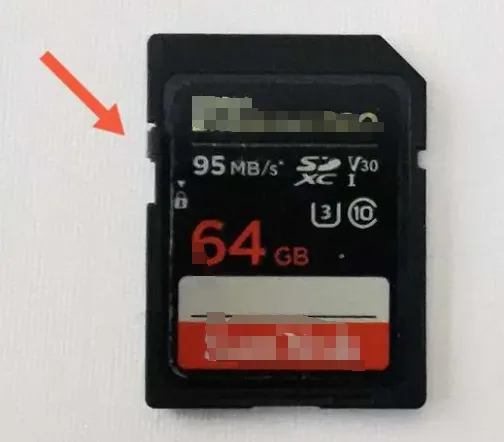
The device is an SD card media unlocking device. Check if the left lock lock is pushed to the bottom (with write protection enabled), as shown in the following figure: