Prerequisites:
- Prepare the active safety AI algorithm package for the matching model, obtain and open the Upgrade Firmware, Update Table article link to download the corresponding model AI firmware, or seek technical support from our company.
- The device starts with the AI version of the upgraded hardware version (FDT) VA, for example, the M51HV AI version "VA20103". For the version view method, refer to Firmware Upgrade Method Final Steps
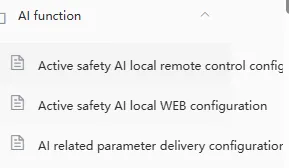
- The device has enabled any AI function. For the method of enabling, refer to AI Function>>> Active Safety AI Some Articles Introduction
Operation steps:
Local copy upgrade method
Unlock and take out the SD card or hard disk in the device, use a card reader or hard disk reader to connect and insert it into the computer ps: The SD card or hard disk must be recognized and loaded in the recording working state on the device, otherwise format the SD or hard disk on the device first
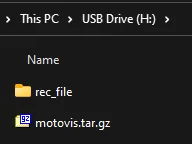
Open "My Computer" on the computer>>>"SD card first partition root directory" Generally, there will be a created "rec_file" folder in the first partition root directory in the last two drive letters of My Computer

Unzip the downloaded firmware compressed package, copy and take out the "motovis.tar.gz" compressed package, this compressed package does not need to be unzipped, copy it to the "SD card first partition root directory", and after completion, unplug the SD card and insert it back into the device to lock it.
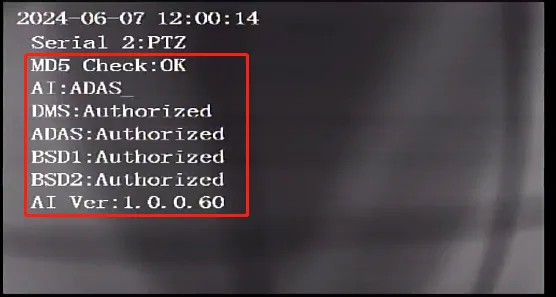
Use the remote control to press the left direction button once to come to the "Serial Port, AI" interface, and check whether the AI status in the red box in the lower left corner is running normally
Remote CMSV6 client upgrade method
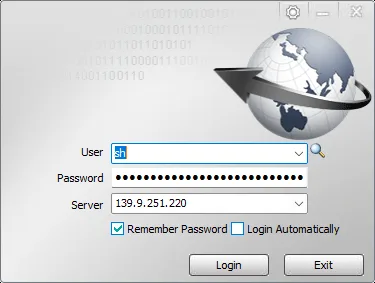
Log in to the client on the computer, right-click the online device, and select "Device Upgrade"
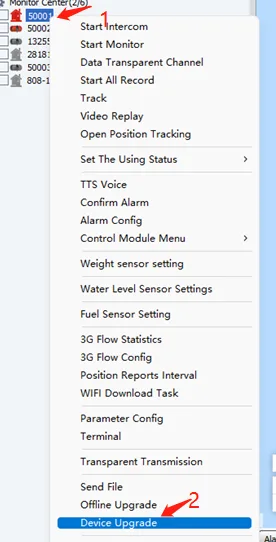
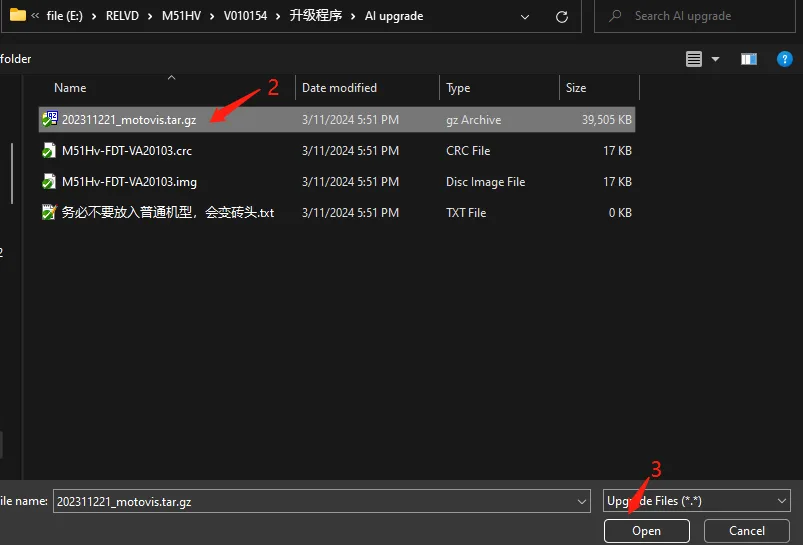
In the Device Upgrade dialog box Click "Browse">>>Select the file with the suffix "motovis.tar.gz" on your computer>>>"Open"
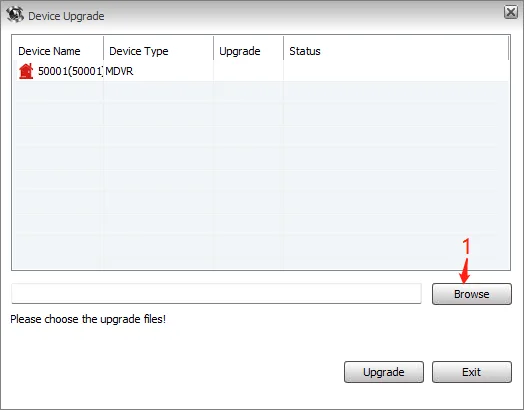
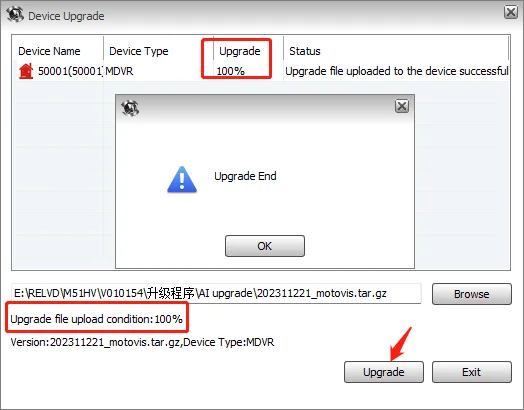
Return to the Device Upgrade dialog box Click the "Upgrade" button, wait for a while and see the display of "100% upgrade", which means the file transfer is complete
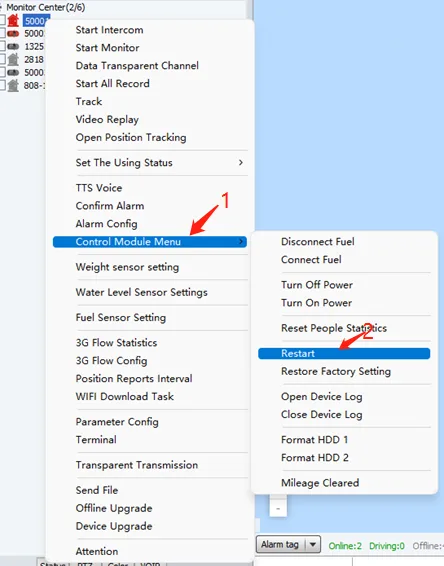
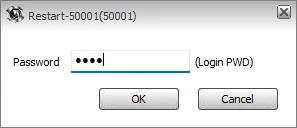
Right-click the online device again, select "Module Control Menu">>>"Restart Device">>>"Enter Login Password">>>"Confirm" When you see the prompt that the restart is successful, it means that the remote restart of the device has been completed. If it fails, check whether the device network is unobstructed. You can open the video or refresh the terminal information to observe ps: If you do not see the restart device button Please find out whether the platform supervisor has assigned control permissions to this login account
The device will automatically upgrade after restarting, and will be online again after completion
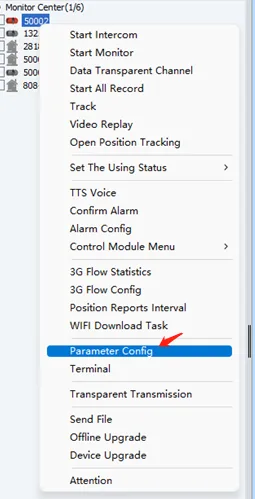
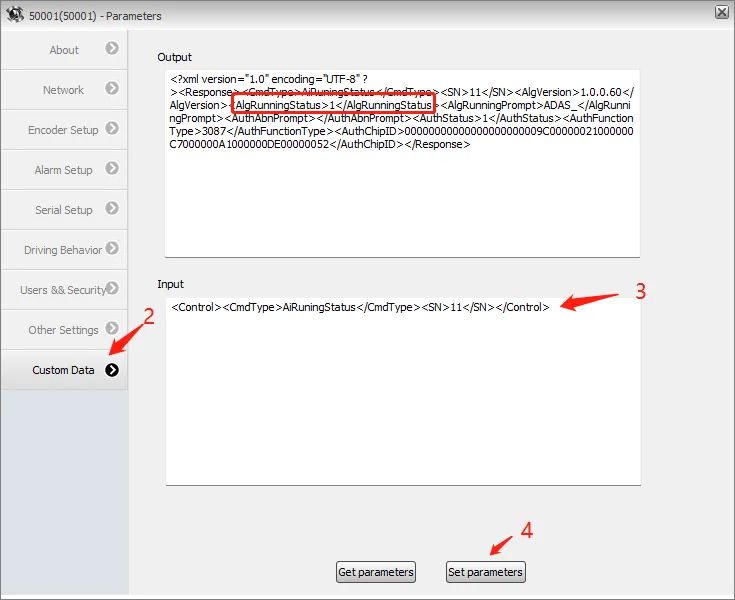
Right-click the online device again, click "Parameter Configuration" to go to the configuration plug-in homepage, click "Custom Data">>> Input box to copy the following "AI Authorization Query">>> "Set Parameters" Check whether there is a non-zero value in the middle of the returned information "AlgRunningStatus" to indicate that AI is running. For the specific meaning of some parameter returns, please refer to Active Safety AI Related Parameters Distribution Configuration Instructions Running means that the AI algorithm and upgrade are successful.
<Control><CmdType>AiRuningStatus</CmdType><SN>11</SN></Control>