Prerequisites:
- MDVR host, remote control, display screen;
- If you want to retrieve logs remotely, the device must be online on the platform;
- It is recommended to bring a spare GPS antenna or host for on-site inspection to facilitate cross-checking of problems;
Description:
- GPS (abbreviation: Global Positioning System) positioning relies on the GPS antenna receiver to receive the US GPS satellite or China Beidou satellite signal in the sky for positioning, so first of all, you must ensure that the device's GPS antenna can obtain the sky satellite signal, and the number of satellites and signal value can reach the module positioning value;
- The GPS antennas of M20Cv, M18Ev, and M91Hv models are all built-in antennas, and the other vehicle-mounted DVRs are external GPS antennas. M71Hv is a GPS rod antenna;
- When installing the device, the front of the GPS antenna reception should face the sky as much as possible, and there should be no metal shielding on the antenna as much as possible, and there should be no signal interference around the GPS antenna as much as possible;
Antenna receiving surface description
1 External GPS antenna
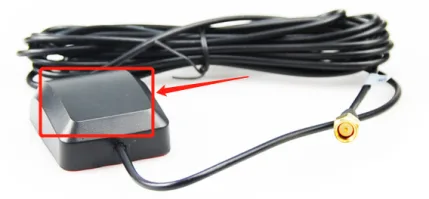
The black curved surface is the front of the antenna receiving.
2 M20Cv
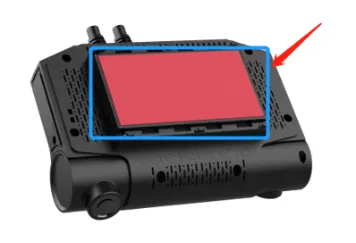
The surface where the windshield is attached is the front of the antenna receiving
3 M91Hv
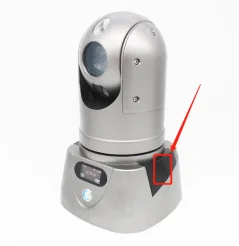
4 M71Hv
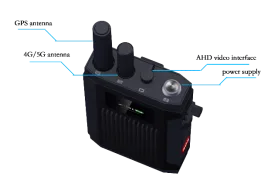
M71Hv If positioning is required, be sure to connect the GPS antenna rod.
On-site inspection steps:
Device display screen GPS related information display instructions
- After the device is connected to the display screen, use the remote control to switch the real-time status display screen. There are 2 pages of GPS status pages, one of which is whether the GPS is positioned and the antenna status, as shown below:
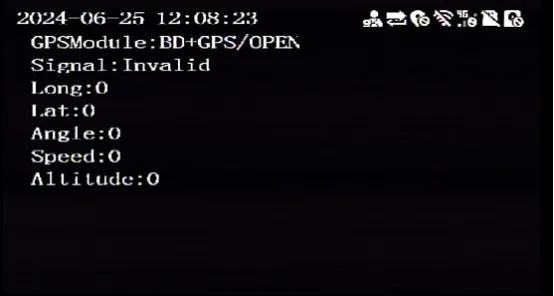
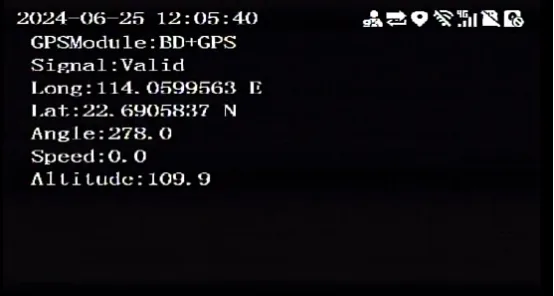
OPEN: It means that the GPS antenna is not connected. After GPS positioning, the status is as follows:
- Another page is the current received GPS satellite status information, as shown below:
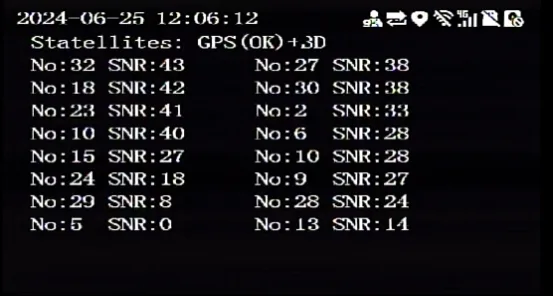
If positioning is required, there must be at least 3 GPS satellites. Under normal circumstances, the number of GPS satellites obtained is 5 or more, and the total number of GPS and Beidou satellites is more than 10. If the number of satellites that can be received is small and the signal value is small, then check the placement of the GPS antenna; if there is no satellite, then first check whether the antenna is connected and whether the antenna is damaged. Refer to the following chapters.
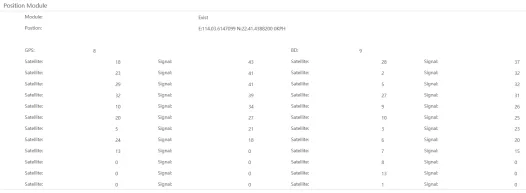
You can also connect the device through a computer, enter the device system information bar to view the current information of GPS, and refer to other related documents Web System Information Manual, as shown below
Check whether the GPS antenna is properly connected to the device This step is only suitable for models with external GPS antennas, such as 71Hv, MDVR, M71Hv is a rod-shaped GPS antenna, make sure to insert and tighten Tight, refer to the following figure for the MDVR external antenna:
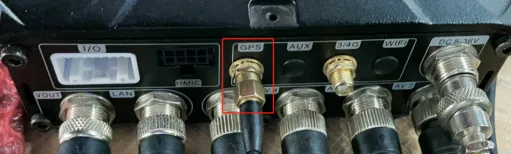
Note: Don't mistake other antennas, make sure the GPS antenna is connected to the corresponding socket with GPS silk screen. There is a printed label on one side of the socket end of the GPS antenna to ensure that it is a GPS antenna.
- Check whether the receiving surface of the GPS antenna is facing the sky. The receiving front of the GPS antenna should face the sky as much as possible, so that sufficient GPS satellite signals can be obtained. When installing the vehicle, you can consider placing the GPS antenna on the left or right of the center console, as shown below:
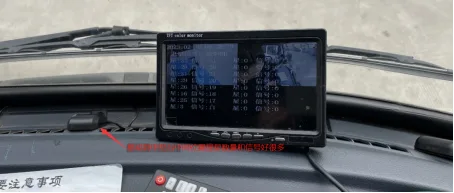
Note: The antenna is placed facing up. When installing, make sure that the GPS is positioned and the antenna signal is sufficient. Then, you can tear off the GPS base glue and fix the GPS antenna to ensure that the antenna will not move randomly during the movement of the vehicle.
- Check if there is interference around the GPS antenna If the GPS antenna has other host antennas, there will be mutual interference, so try to avoid them. For example, there is interference in the following figure:
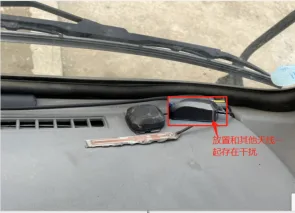
- Move the antenna to the roof If conditions permit, you can bring a spare GPS antenna for on-site inspection, try to replace the GPS antenna, and put the antenna receiving surface of the spare antenna on the roof for testing and analysis.
Remote video analysis
Log in to the client to view real-time video and check the GPS status OSD information in the lower left corner
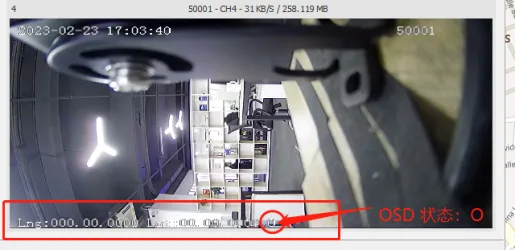
Status 1 "OSD: O" Antenna not connected Status 2 "OSD: S" Antenna damaged Status 3 "OSD: E" Signal weak Status 4 "OSD: N" Positioning module in the device is broken
Remote log analysis
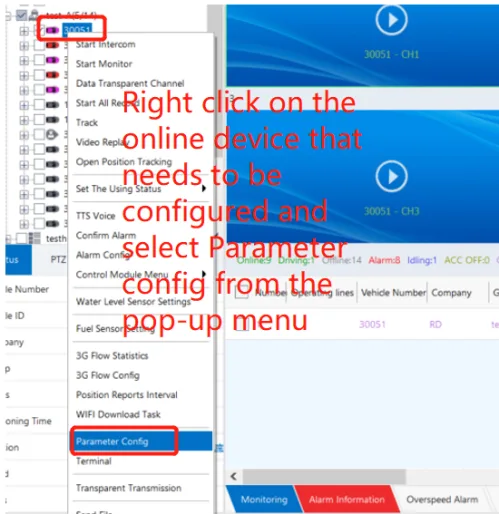
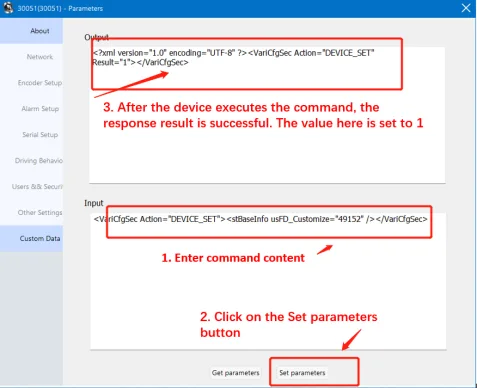
- Log in to the client to issue the command to open the real-time data log of the GPS module
<VariCfgSec Action="DEVICE_SET"><stBaseInfo usFD_Customize="32768" /></VariCfgSec>
Description: GPS Log, the command will take effect immediately after it is issued, and the configuration will be saved. The log will be opened as usual when the device is turned on next time. Let the analyzed vehicle run for a period of time, and ensure that the vehicle is in an open place or observes the normal operation section of the vehicle for a period of time before downloading the log. At the same time, after debugging is completed, it is recommended to close the log of the business module configuration issued separately, otherwise there will be too much information. Just issue the following command:
<VariCfgSec Action="DEVICE_SET"><stBaseInfo usFD_Customize="0" /></VariCfgSec>
Note: If the control logic mechanism of the device's 4G module data transmission and reception change detection and platform online detection is turned on, then special attention should be paid to resetting and closing the log. The usFD_Customize value cannot be 0. Please consult professional technicians for assistance.
- GPS log file keyword analysis instructions After downloading the log, open the log file, such as log_20240612_164856, search for the RMC keyword, and see if there are related log records. If so, it means that the device program has received the data from the GPS module. GPS data format: $GNRMC,100429.000,A,2241.43942,N,11403.60059,E,0.002,83.89,120624,,,A75 Where: A Indicates positioning Current satellite information: $GPGSA,A,3,18,29,23,,,,,,,,,,1.58,1.34,0.83,11D Visual satellite status output statement: $GPGSV,3,2,09,29,25,215,45,23,25,317,43,13,22,37,12,20,13,101,*4B Format description refers to the following file: