Prerequisites:
- The device network can access the Internet normally, for example: 4G dial-up is successful or wired network routing is successful or WiFi connection is successful, refer to the "Function Usage">>>"Network Function" article introduction!
- Usable remote control, normal display screen
Operation steps:
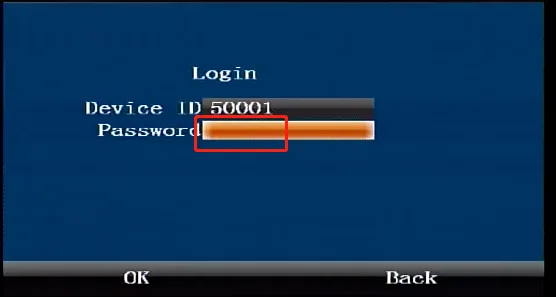
Press the middle "ENTER" confirmation button on the remote control to enter the login interface, and enter the default administrator password "999999"
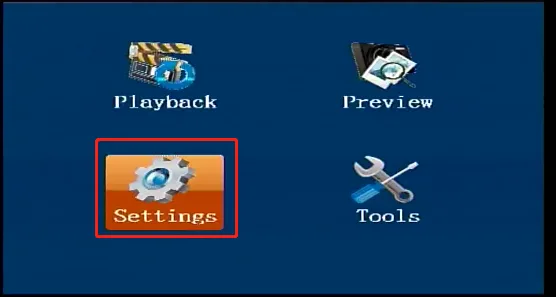
In the first-level menu interface, press the direction key on the remote control to move to the "Settings" button, and press the middle "ENTER" confirmation button on the remote control to enter the second-level "Settings" menu
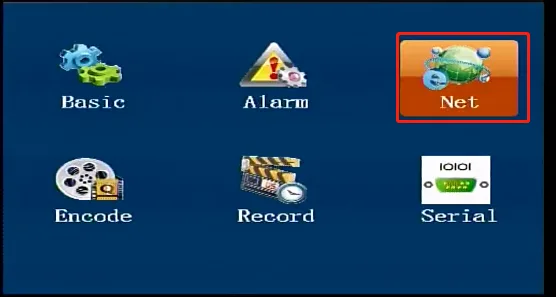
In the second-level "Settings" menu interface, press the right arrow key on the remote control to move to the "Network Settings" button, and press the middle "ENTER" confirmation key on the remote control to enter the third-level "Network Settings" menu
In the third-level "Network Settings" menu interface, press the right arrow key on the remote control to move to the "808" interface, and press the middle "ENTER" confirmation key on the remote control to enter the "808" menu modification status
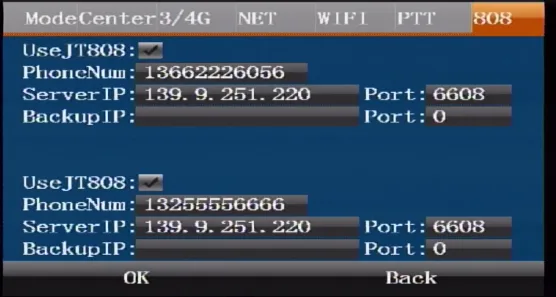
In the modification state, press the down arrow key to move the cursor to the "Enable part sign" checkbox and press the middle "ENTER" confirmation key to enable it. Continue to press the key to move the cursor to the "Mobile phone number", "Server IP" and "Port" fill-in boxes. Use the remote control number + ".DOT" key to quickly fill in numbers and decimal point characters
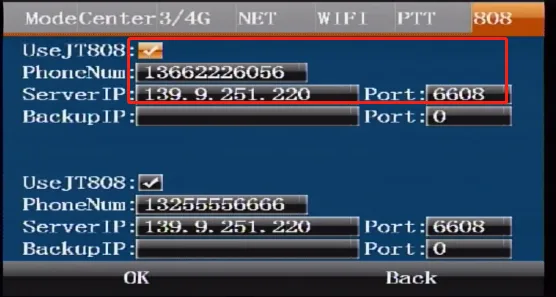
Press the key to move the cursor to "Backup IP" Use the remote control numeric keys to quickly fill in the numeric characters in the "Port" fill-in box (the backup here means that after the registration of the first department standard server fails, it will switch to this backup server to register the connection. If you do not need to register the backup server, ignore this step)
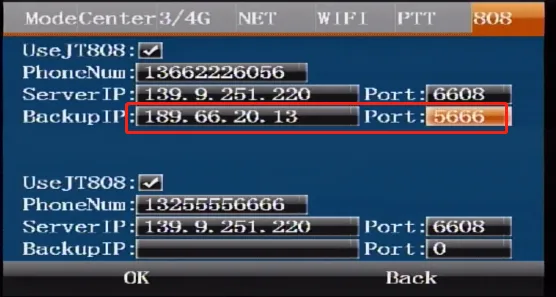
Press the key to move the cursor to the second department standard configuration parameter fill-in box and repeat steps 5 and 6 to fill in the parameters. If you do not need the device to register two department standard platforms at the same time, ignore this step
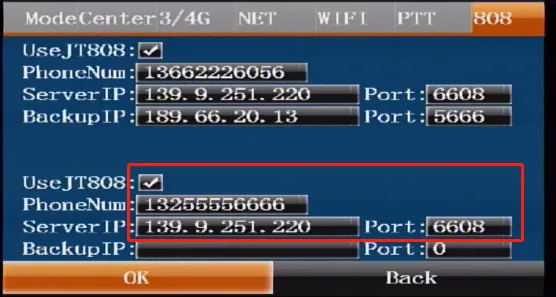
Press the down arrow key to move to the "Confirm" button, and press the "ENTER" key to confirm and save the configuration parameters. The parameters of the Ministry Standard Registration Platform will take effect immediately after configuration without restarting.
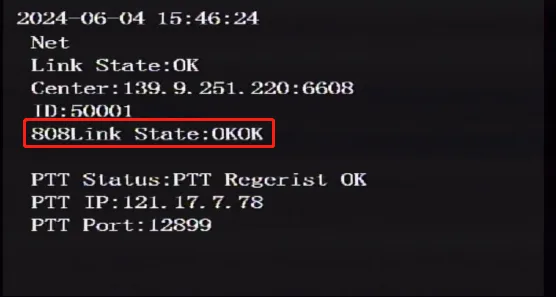
Press the "RETURN" return key in the lower right corner of the remote control arrow key to come to the device real-time preview main interface, and press the right arrow key three times again to come to the "Network Status" interface to check whether the Ministry Standard Platform registration status is successful.