Prerequisites:
- A usable remote control and a normal display screen
- The device is in the real-time preview main interface. If you press the "RETURN" button in the lower right corner of the remote control direction key in the menu interface, you will exit to the real-time preview main interface.
Operation steps:
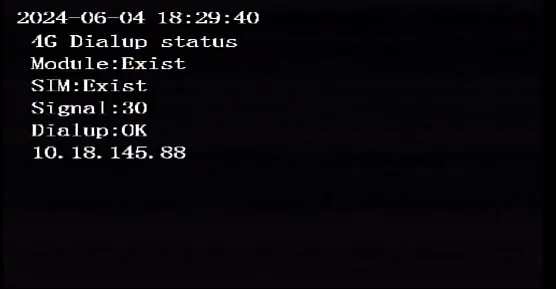
1. Check 4G dial-up information
Press the remote control right key "→" once to come to the "4G dial-up status" interface, where you can check whether the 4G dial-up is successful and the signal value status.
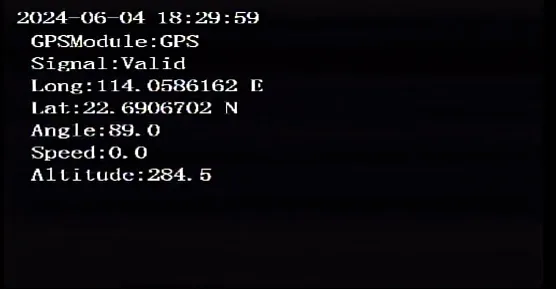
2. Check positioning information
Press the remote control right key "→" twice to come to the "positioning module" interface, where you can check whether the positioning is successful and the coordinate information.
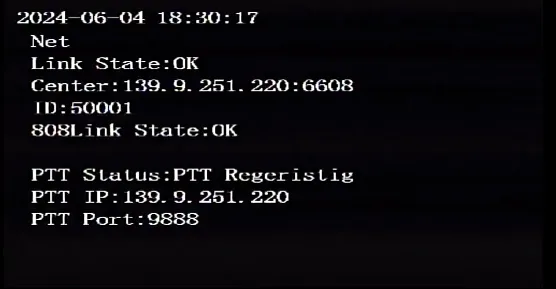
3. Check the registration information of some platforms
Press the right key "→" on the remote control three times to come to the "Network Status" interface, where you can check whether the registration of CMSV7, 808, 28181, and PTT platforms is successful.
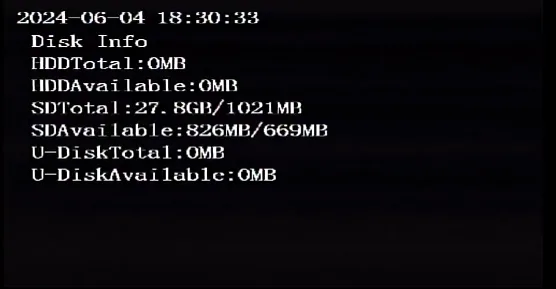
4. View disk capacity information
Press the right button "→" on the remote control four times to come to the "Disk Capacity Information" interface, where you can view the storage capacity information of the hard disk, SD card, USB flash drive, etc.
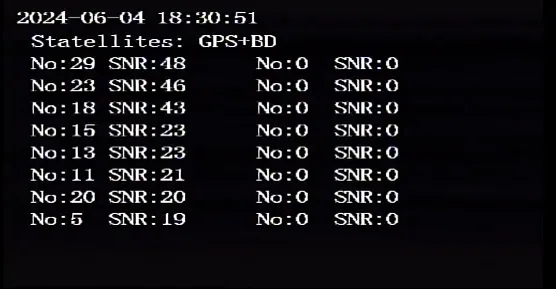
5. Check the positioning satellite signal information
Press the right key "→" on the remote control five times to come to the "Satellite Signal" interface, where you can view the number and signals of satellites involved in positioning. The left side is GPS and the right side is Beidou satellite.
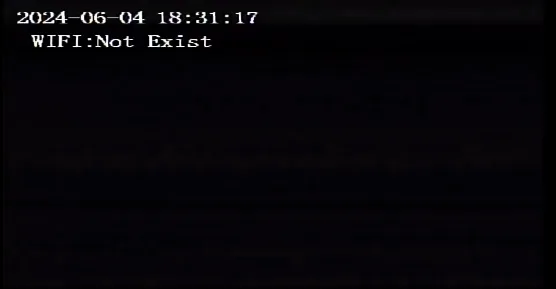
6. Check WiFi dial-up information
Press the right key "→" on the remote control six times to come to the "WIFI dial-up status" interface, where you can check whether the WiFi dial-up is successful and the signal value status.
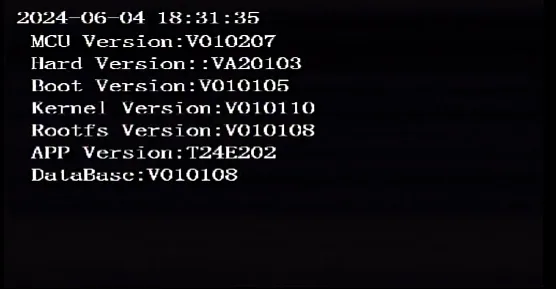
7. Check the version number information
Press the right key "→" on the remote control seven times to come to the "Version Number" interface, where you can check the firmware version numbers of applications, microcontrollers, databases, etc.
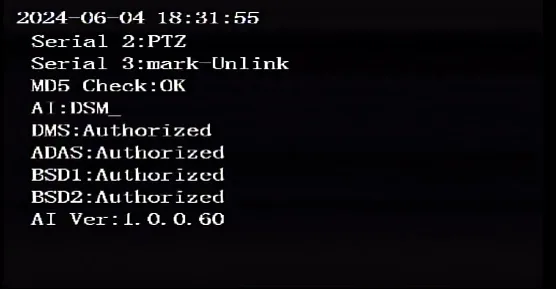
8. View serial port and AI information
Press the right key "→" on the remote control eight times to come to the "Serial Port, AI" interface, where you can view the functions and connection status of each serial port configuration, and the functions and authorization status of the AI configuration.