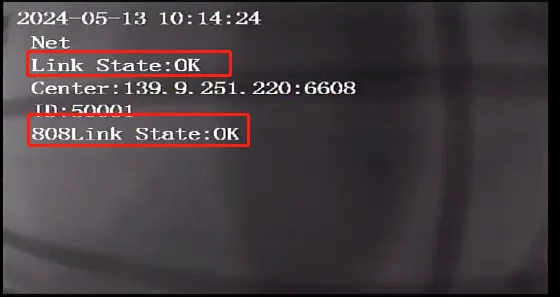
Prerequisites:
- The device network can access the Internet normally, for example: 4G dial-up successfully accesses the network or wired network routing successfully accesses the network or WiFi connection successfully accesses the network, refer to the "Usage of Functions>>>>"Network Functions" article introduction!
- Working remote control, normal display screen
Steps:
Press the red button in the upper right corner of the remote control to enter the login interface. Enter the default administrator password "999999" to enter the quick settings menu. The upper part of the parameters registers the private platform, and the lower part of the parameters registers the departmental platform.
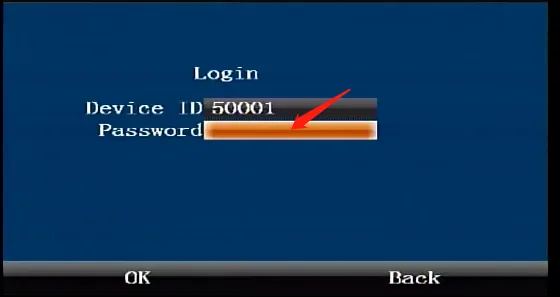
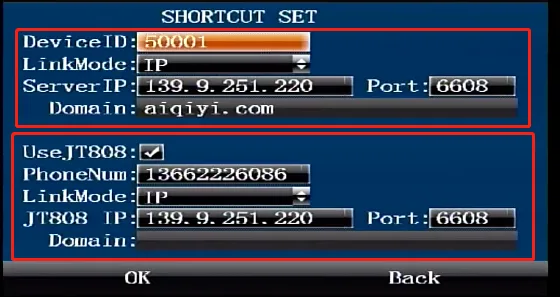
Press the down arrow key to move the cursor to fill in the "Device Number", "Server IP" and "Port" to register the private platform or select the "Domain Name" connection method to fill in the domain name address. ps: When the input is not pure numbers, point the cursor at the input box and press the remote control and press the middle "ENTER" confirmation key to enter the "Enter Characters" menu. The default interface is lowercase English input character menu. Move the direction keys to the English characters that need to be input. Press the remote control again. The English characters entered successfully by the "ENTER" confirmation key in the middle;
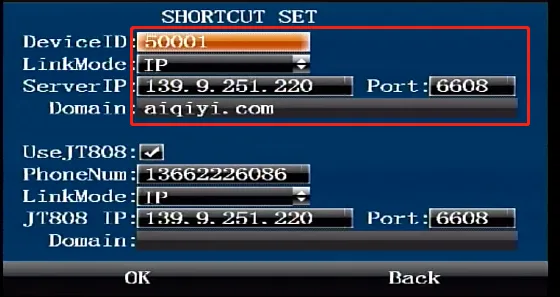
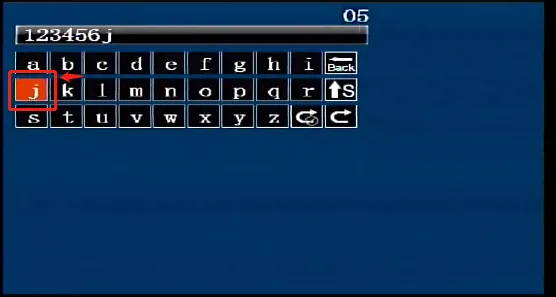
 Switch between numbers, letters, and symbol buttons, move the cursor here remotely and press the "ENTER" confirmation key switch
 Delete character button, move the cursor here remotely and press the "ENTER" confirmation key to delete
 Return button, remotely move the cursor here and press the "ENTER" confirmation key to return
Press the down arrow key to move the cursor to the "Turn on department logo" check box "Mobile phone number" "JT808 IP" "Port" or select the "Domain name" connection method to fill in the domain name address
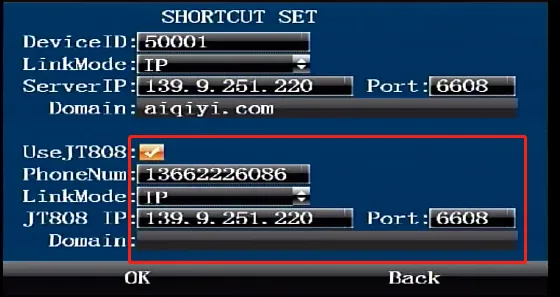
Press the down arrow key to move to the "Confirm" button, and press the "ENTER" key to confirm saving the configuration parameters. After the private and departmental registration platform parameters are configured, they will take effect immediately without restarting.
Press the "RETURN" key in the lower right corner of the remote control direction key to enter the device real-time preview main interface. Press the right key three times again to enter the "Network Status" interface to check whether the registration status of the private and ministry-standard platforms is successful.