Prerequisites
- The device can start normally;
- A working remote control and a normal display screen;
- The SIM card is not damaged, has no outstanding fees, or other abnormalities;
Important Notes
All our equipment is recommended to use industrial-grade SIM cards for more stable and durable operation. See image:
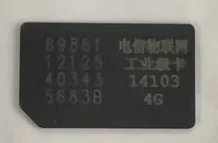
For sticker thickness, please consult our sales or technical support, or purchase thinner, sticky stickers yourself. Be sure to pay attention to the sticker material requirements: high temperature resistance and burn-proof type. Do not apply too thickly to avoid damaging the SIM card slot.
Troubleshooting Steps
I. Registering on Various Platforms (Refer to the article above)
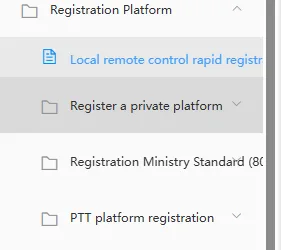
Refer to the above function usage steps for platform registration parameter configuration. --- Platform Registration Some articles
II. Troubleshooting Network Parameters for MDVR Series Remote Control Displays
Troubleshooting 4G Connection Method
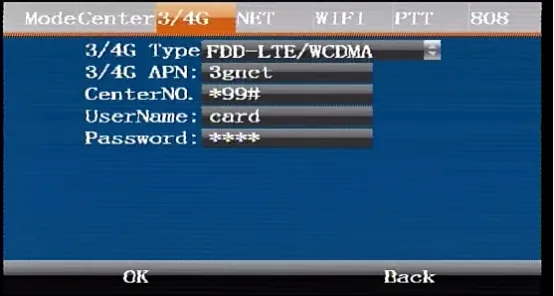
Check if the SIM card has data and can access the internet normally. After inserting it, press the right arrow key "→" on the remote control in the main preview interface to enter "4G Dial-up Status". The interface shows that if the module exists, the SIM card exists, the signal strength is positive, the dialing status is successful, the IP address is displayed, and the status icon shows "online," then the SIM card has successfully connected to 4G.
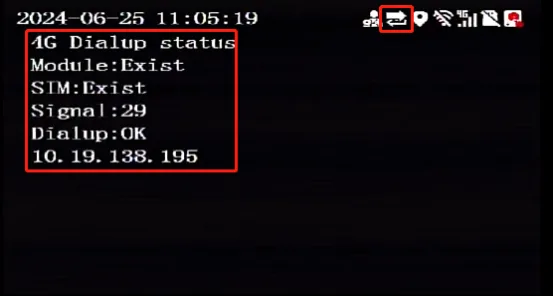
Besides checking for successful dialing, another issue is with SIM-VPN cards. You need to check if the operator has disabled the network (domestic 4G module APN parameters are automatically set and do not need modification; private networks or overseas operators require modification of the corresponding APN parameters)
Troubleshooting WiFi Connection Method
Is the device in WiFi network mode?
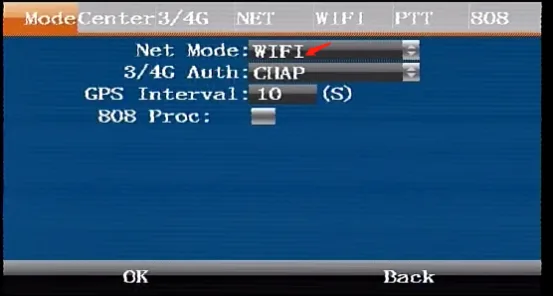
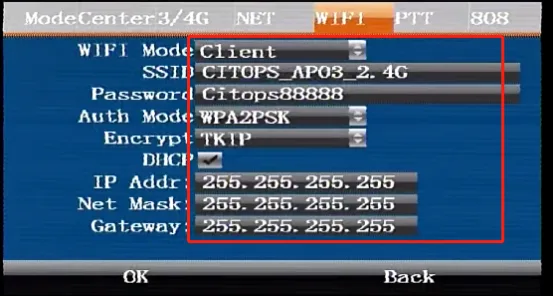
Are all items in the WiFi parameter configuration interface filled in correctly? You can first use your mobile phone. Verify that this WiFi connection is working (the device currently shipped is typically a 2.4G WiFi module; check if the router's WiFi is 2.4G).
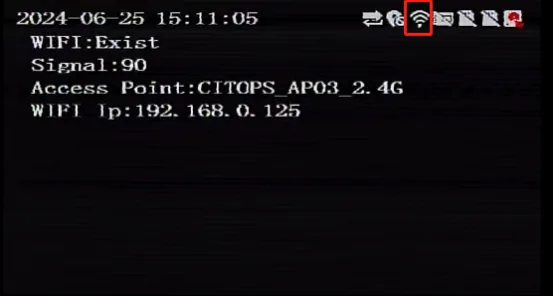
On the main preview screen, press the right arrow key "→" on the remote control. On the "WIFI Status Bar" screen, check if the WiFi module exists, if the signal is normal, if the wireless access point has a name, if the WiFi IP exists, and if the icon in the upper right corner exists.
Troubleshooting Wired Connection Method
Check if the network cable can connect to the internet. Connect the vehicle's equipment to the network cable and use the remote control to access Menu > Settings > Network Settings > For the network, check if the IP address, subnet mask, MAC address, and gateway are entered correctly, and if they are on the same network segment.
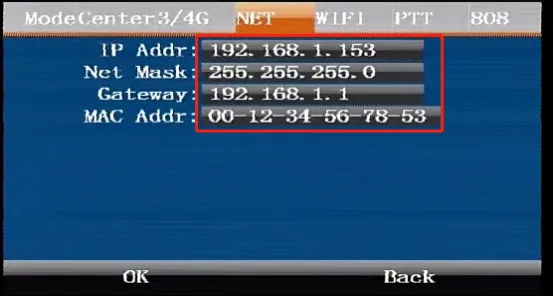
III. Troubleshooting Registration Parameters for Individual Soldier-Controlled Camera Series Equipment (Example of Registering on CMSV6 Platform)
For instructions on importing configuration parameters, please refer to the following:Import local configuration to register private platform For remote configuration parameter methods, please refer to:Parameters are sent to register a private platform
IV. Troubleshooting SIM Card Insertion Direction
Power off the device, remove the SIM card, and observe the chip. The vertical and horizontal directions, as well as the left and right directions of the notch, must be inserted according to the device markings.
M15HV Example: 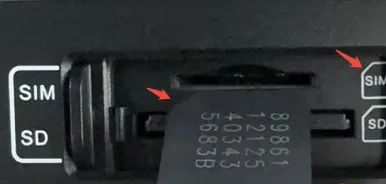
M20EV Example: 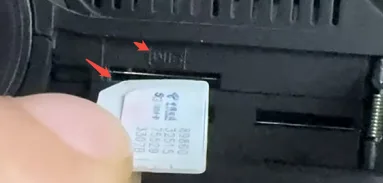 M93HV Example: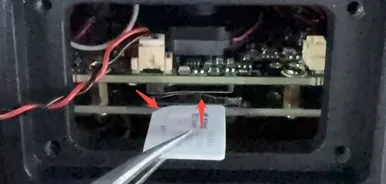
V. Troubleshooting SIM Card Slot Contact Power off the device and remove the SIM card. Apply the thickened sticker provided by our company to the back of the chip. Reinsert the SIM card according to the indicated direction. If it still feels loose after insertion, you can add another sticker. Note that you must not apply too thick a sticker; if it is too tight to insert, you will need to remove the sticker.
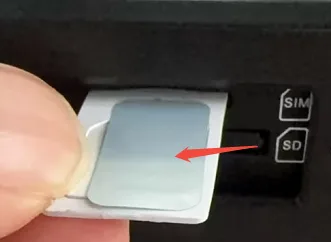
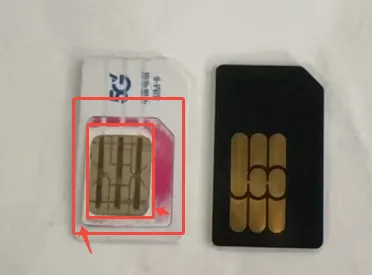
VI. Troubleshooting MDVR Series SIM Card Size Adapters After powering off the device, remove the SIM card and check if the smallest SIM card adapter is flat, securely fastened, and not detached. If necessary, purchase a complete larger SIM card for use.
VII. Checking Vehicle IDs and Running Status in the Platform Backend (CMSV6 Server Example)
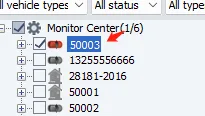
Log in to the platform client to check if the added vehicle device number is present and if any other online vehicles are online.
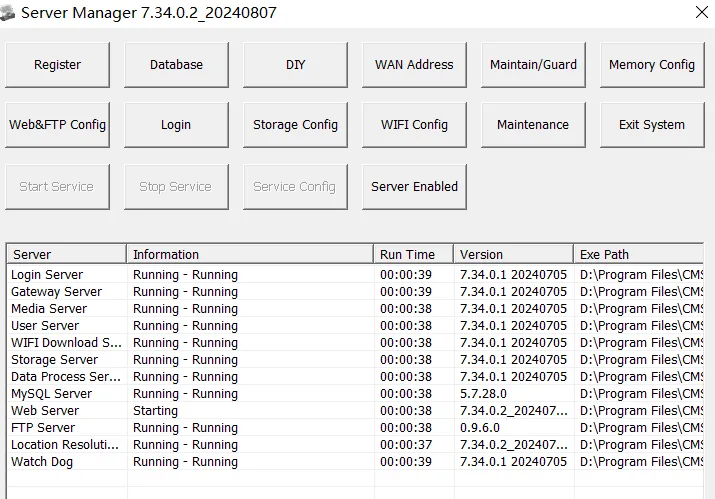
Check if all services in the platform backend are running normally.