Remote ADAS / DSM / BSD Authorization Guide
This document explains how to remotely enable the ADAS (Advanced Driver Assistance System), DSM (Driver Status Monitoring) and BSD (Blind Spot Detection) algorithms on vehicle-mounted devices.
Download the authorization request form here: Remote Authorization Request Form (template). Fill it in and submit it following the process in Section 2.
1. Preparation
Authorization can only be completed smoothly when all five items below are in place. If the preparation is not finished, authorization cannot proceed and the lead time will be longer.
| No. | Item | Requirement | Confirmed by |
|---|---|---|---|
| 1 | Platform account | Customer provides a platform account with parameter configuration permission | Customer |
| 2 | Device online | Device powered and online during authorization | Customer |
| 3 | All AI features enabled | Includes previously authorized features as well as the new ones | Customer, our Business Team or Sales |
| 4 | Latest firmware and algorithm package | Upgrade to the latest versions | Authorization Team |
| 5 | Authorization server address | Only for devices shipped before 2025 | Authorization Team |
1.1 Platform account (including device access prerequisites)
Prerequisite: the device must run on the Citops platform and be registered online through the Citops proprietary protocol.
Devices connected over other protocols (such as JTT808 or GB28181) cannot receive remote authorization. Switch them to the proprietary protocol and register them again before proceeding.
Once the prerequisite is met, the customer must provide a platform account with parameter configuration permission. The Authorization Team uses it to check device status and deliver the authorization. Without sufficient permission the authorization cannot be performed.
For multiple devices under the same account, enter the account information only in the first row of the request form and leave the remaining rows blank.
1.2 Device online
The authorization code is delivered to the device through the platform, so nothing can be written while the device is offline.
- Keep the vehicle powered and the network connected during authorization
- For batch authorization, power on all devices at the same time to avoid waiting one by one
- If any device is offline, the requester must track it and tell us once it comes online
1.3 All AI features enabled
Enable all AI features, including the ones authorized previously.
Selecting only the new features will turn the old ones off — the symptom is "the new feature works but the old ones are gone".
The customer can confirm this themselves, or our Business Team or Sales can do it on the platform.
1.4 Upgrade firmware and algorithm package
Upgrade to the latest firmware and algorithm package versions. Older versions may not recognise newly issued authorization codes.
This item is confirmed and handled by our Authorization Team during authorization; the customer does not need to do it in advance.
1.5 Authorization server address (devices shipped before 2025 only)
For devices shipped before 2025, send the command below first to point the authorization server address to our service, then restart the device:
<VariCfgSec Action="DEVICE_SET">
  <stAIModules strFD_AuthSvrAddr="139.224.40.245"></stAIModules>
</VariCfgSec>
Devices shipped in 2025 or later already have this address built in — skip this step. Changing it by mistake will prevent the device from reaching the authorization server.
This step is also confirmed and handled by our Authorization Team.
2. Authorization process
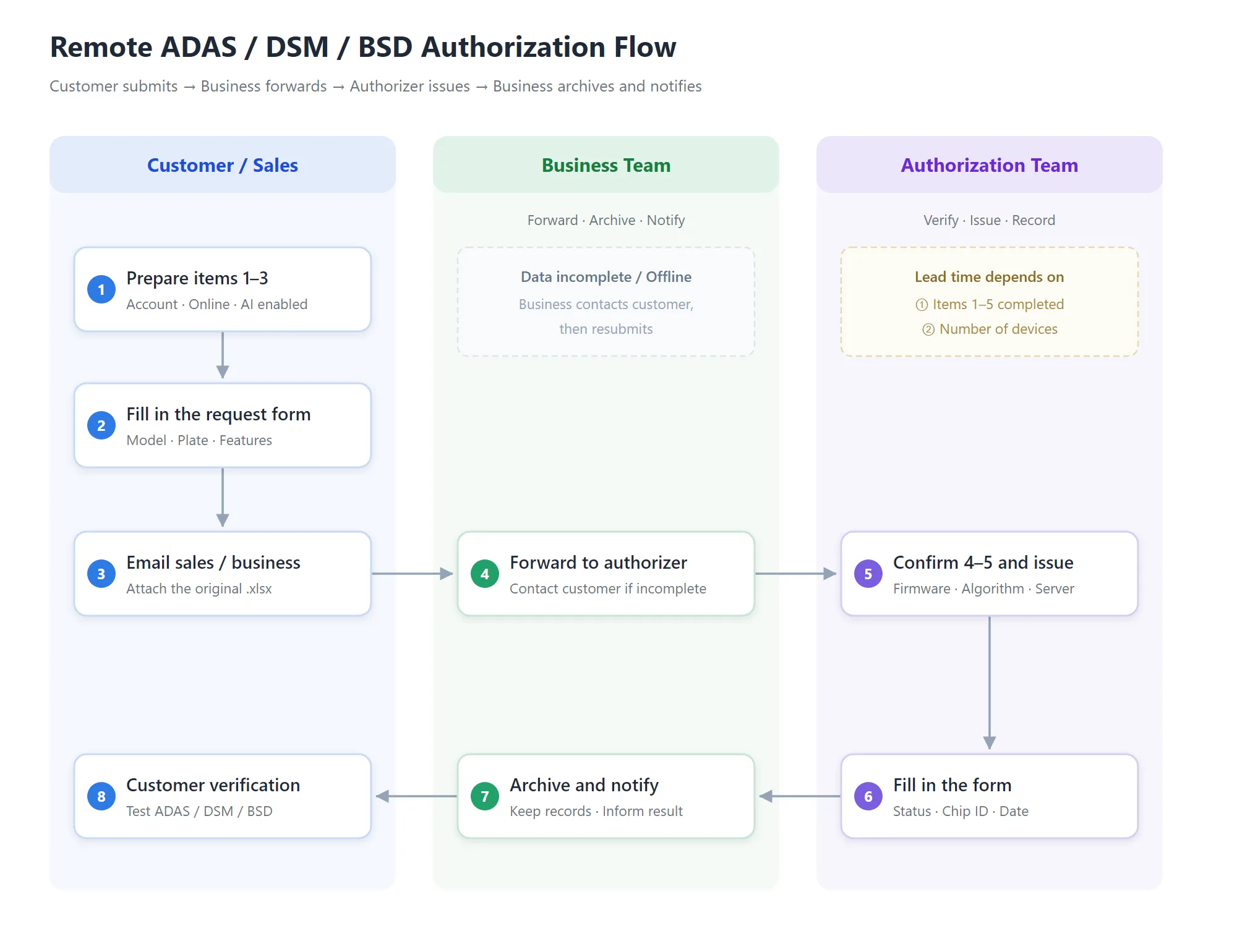
| Step | Who | What |
|---|---|---|
| 1 | Customer | Complete preparation items 1–3 (platform account, device online, all AI features enabled) |
| 2 | Customer | Fill in the Authorization Request Form |
| 3 | Customer | Email the form to the sales or business contact |
| 4 | Business / Sales | Forward it to our Authorization Team |
| 5 | Authorization Team | Confirm preparation items 4–5 (firmware and algorithm package versions, authorization server address), verify the details and issue device by device |
| 6 | Authorization Team | Complete the form: authorization status, Chip ID, authorization date |
| 7 | Business | Archive the form and notify the customer or sales |
| 8 | Customer | Verify that the features work (see Q5) |
About archiving: the Business Team must keep the completed form on file, so the authorized quantity can be checked against the algorithm vendor later.
About lead time: lead time depends on two things — whether preparation items 1–5 are all complete, and how many devices are being authorized.
3. FAQ
Q1: How do I grant parameter configuration permission to a platform account?
A super administrator or system administrator ticks Parameter Configuration and Command Delivery for that account under System Management → User Management → Role Permissions. Menu names vary between versions; contact our technical support if you cannot find them.
Q2: How do I enable the AI features?
The AI menu is operated on the device itself (use the remote control to enter the AI menu, select the algorithm, assign the channel and save). See the help page:
👉 AI configuration on the device with the remote control
Q3: The AI channels are enabled, but the AI does not start. Why?
Check first whether the FDT version supports AI.
The FDT version must start with VA (for example VA20106) to support AI. A version starting with V0 is a standard build without AI support — upgrade to an AI-capable FDT version first.
Q4: When several AI channels are enabled, will the channel numbers collide?
No. Channel numbers are fixed per feature, each taking its own:
| Feature | Channel |
|---|---|
| ADAS | Channel 1 |
| DSM | Channel 2 |
| Left BSD | Channel 3 |
| Right BSD | Channel 4 |
One camera can only be bound to one algorithm. Binding two to the same camera causes the algorithm to fail to start.
Q5: How do I confirm the features work after authorization?
| Feature | How to verify |
|---|---|
| ADAS | While driving, check whether lane departure and forward collision warnings are triggered |
| DSM | Simulate fatigue, smoking or a phone call in the driver seat, then check whether the matching alarm is triggered |
| BSD | Have a person or vehicle pass by the left and right rear of the vehicle, then check whether the blind spot alarm is triggered |
Q6: Can a device be authorized while offline?
No. The authorization code is delivered through the platform and cannot be written while the device is offline. Submit again once the device is online.
Q7: I replaced the main unit. Is the existing authorization still valid?
No. The authorization is bound to the chip ID of the main unit — one device, one code. Reapply with the chip ID of the new device.
If you have any questions about this document, please contact your sales or business contact.