device configuration by scanning a QR code
I. Feature Overview
Configure your device simply by scanning a QR code — no network connection required.
Enter parameters on your phone to generate a QR code, then have the device camera scan it to apply the configuration. No SD card swapping, and no need to wait for the device to get online.
| Comparison | SD Card Import | Online Platform Provisioning | QR Code Import |
|---|---|---|---|
| Device needs network | No | Yes (must be connected) | No |
| Remove / insert SD card | Yes | No | No |
| Time per device | 1–2 minutes | Depends on platform response | A few seconds |
Typical use case: on a production line or in a warehouse, devices may not have a SIM card or network access yet. Scan in the device ID and platform address first — once powered on, the device can go online immediately.
II. Prerequisites
- Device firmware supports QR code import (
M93Hv-APP-TQRC004.crcor later). - A 4G SIM card is inserted and the antenna is connected, and the device can establish a data connection (required to verify the platform connection after import).
- Sufficient ambient lighting; avoid strong reflections.
About qrcfg.txt: place this file — containing the single line qrcfg_chn=1 — in the root directory of the device's first disk partition and the device will keep scanning for QR codes continuously. Download it here: qrcfg.txt
Even without this file, scanning still works — but the device will only accept a scan within about 5 minutes of powering on; after that, scanning no longer works.
The value
1inqrcfg_chn=1means camera channel 1 handles the scanning. M93Hv is a single-camera device, so keep this value at1.
III. Tool Link and QR Code
Tool link: Quick Configuration via QR Code
QR code:
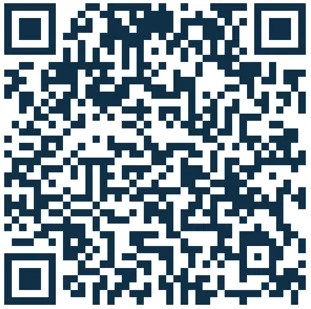
Printable version for stickers (for the device body, manual, or packaging box; 1368×1488): tool-qr-print.png
IV. Operating Steps
1. Open the Configuration Tool
- Mobile: open the link directly in WeChat or a web browser.
- PC: open it with Chrome or Edge.
Tip: once the page is open you can save it locally (Ctrl+S / File → Save Page As) and use the tool offline later.
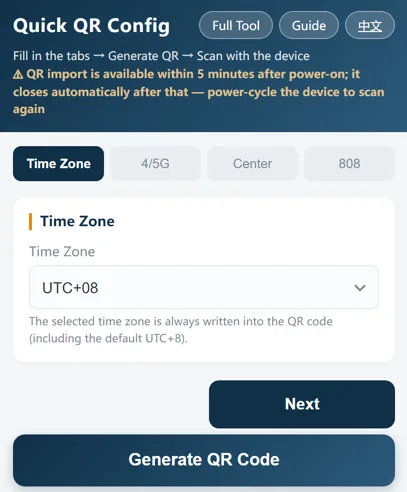
2. Enter Parameters
There are four tabs at the top. Fill in only what you need to change — fields left blank are not written to the device.
| Tab | What to Enter |
|---|---|
| Time Zone | Your local time zone (UTC+8 for China) |
| 4G/5G | APN, dial-up number, username and password (usually keep the defaults) |
| Center Platform | Device ID, platform address (IP or domain name) and port |
| 808 Platform | Enable status, terminal ID, platform address, port and phone number |
Use English letters and digits only for account names, passwords, APN and domain names — no Chinese characters or spaces.
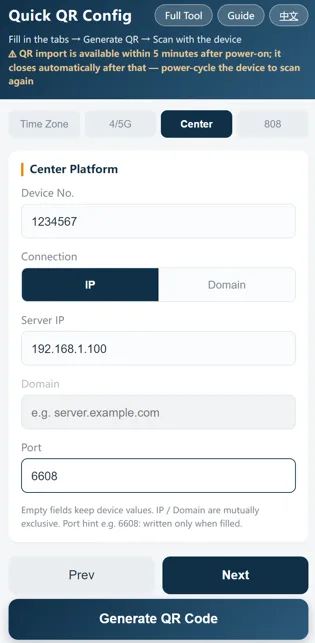
3. Click [Generate] to Create the QR Code
Click [Generate] at the bottom of the page. The QR code appears on screen together with the generated configuration below it, so you can check that everything is correct.
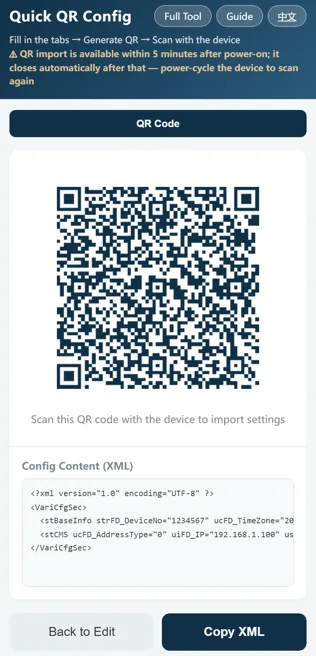
4. Scan the QR Code with the Device
- Place the QR code in the center of the device's field of view (the device only reads the central 80% of the frame; a code near the edge will not be read).
- Set screen brightness to maximum, keep a distance of about 20–40 cm, and avoid glare or reflections on the screen.
- Orientation does not matter — horizontal, vertical or even upside down all work (this is a built-in feature of QR code technology).
Once scanned, the device emits a beep (similar to a WeChat scan), followed by a voice prompt reporting import success and the device ID — the configuration has been applied.
5. Verify That It Took Effect
If you configured 808 platform parameters, the device must be restarted after a successful import. After restarting, check the platform to confirm the device shows as online.
Prerequisite: the device must have a 4G SIM card inserted, the antenna connected, and a working 4G data connection. Otherwise it will not come online and the import cannot be verified.
V. FAQ
| Issue | Answer |
|---|---|
| Device fails to scan the QR code | ① Make sure the code is centered in the frame; ② check the distance (move to 20–40 cm); ③ the screen or environment may be too dark; ④ check for screen glare. Also confirm qrcfg.txt is in place, or that the device was powered on recently. |
| Cannot scan from a phone screenshot | Capture only the QR code itself, including the surrounding white border — do not capture the whole screen, which makes the code appear too small in the frame. |
| Device does not come online after import | ① For 808 platform configurations you must restart the device; ② confirm the device has a working 4G data connection; ③ make sure you scanned the latest code (after a successful import the device waits at least 3 seconds before scanning again). |
| Can it work without a SIM card or network? | Yes. That is the main value of this feature. But verifying success requires the device to have an active data connection. |
| Does enabling QR scanning affect other functions? | Yes. When QR scanning is enabled, other AI functions (such as Motovis or Meitong) will not be activated. |
VI. Important Notes
For 808 platform configurations, the device must be restarted after import before it comes online.
Keep the QR code centered and as large as possible, with screen brightness at maximum, and avoid screen glare.
Scanning works in night-vision (IR) mode, but do not let the IR light shine directly onto the code — it may overexpose and obscure it.
Enabling QR scanning prevents other AI functions from being activated.
Repeated scanning of the same QR code is restricted (minimum 3-second interval).
Related documentation: for importing a configuration from an SD card, or pushing one from the platform, see Other Configuration Methods.